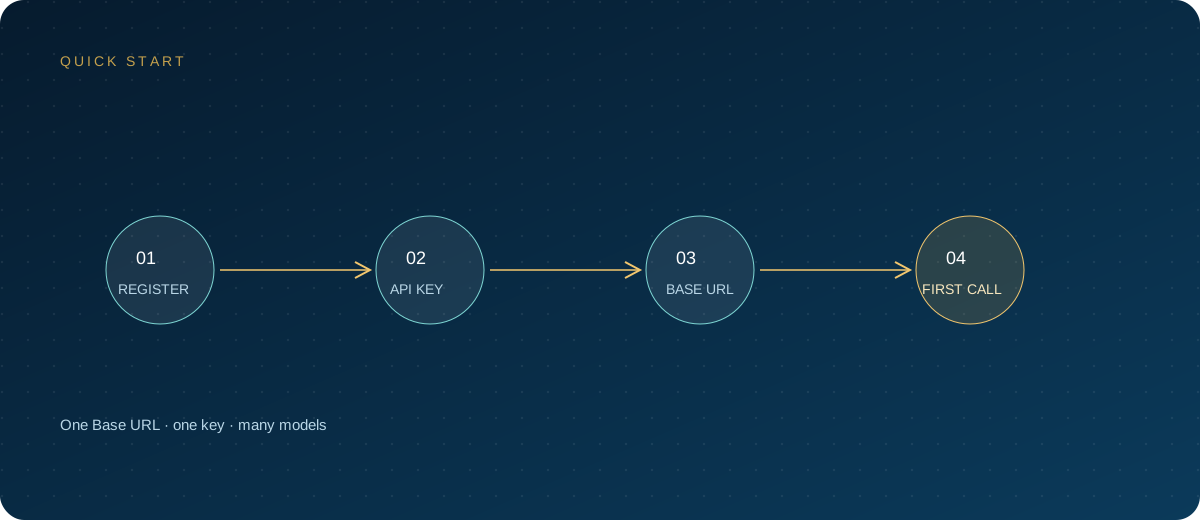
Chatbox is a cross-platform AI client that runs on desktop and mobile and can connect to multiple model providers. It has two typical modes: using the built-in Chatbox AI service, or bringing your own API key to connect your own models. This article covers only the second: how to connect Chatbox to a custom OpenAI-compatible API.
Note: Chatbox is a product of its respective owner. This article is a technical integration guide only. Menu names and field locations may differ between versions; use your current version as the reference. For models and pricing, refer to the site's model pricing.
1. First, confirm which mode you need
| Mode | Billing | Configuration location | Best for |
|---|---|---|---|
| Chatbox AI | Per the client's plan | Sign in to your account | Users who do not want to manage keys |
| Bring your own API key | Pay-as-you-go through the API provider | Model provider settings | Teams that already have a gateway or model account |
| Local models | Depends on local hardware | Local inference service | Scenarios that require data to stay on the machine |
The two modes can coexist. Give the custom provider a distinct name, such as "ZSQH," so it is not confused with the built-in service. When switching models, check which provider the current conversation is using.
2. Prepare three parameters
- API key: create one in the ZSQH AI Gateway and name it after the project.
- API host: the OpenAI-compatible address, commonly
https://ai.zhongshangqihang.com/v1. - Model ID: copy the exact API identifier from the model pricing page.
Verify with curl first to rule out problems on the gateway side:
export ZSQH_API_KEY="sk-your-key"

curl "https://ai.zhongshangqihang.com/v1/chat/completions" \
  -H "Authorization: Bearer $ZSQH_API_KEY" \
  -H "Content-Type: application/json" \
  -d '{
    "model": "your-model-id",
    "messages": [{"role": "user", "content": "Reply with OK only"}]
  }'
If it returns choices, the key, address, and model are all valid, and what remains is only the client setup.
3. Add a custom model provider
Using a common current version as an example, the steps are as follows (button labels depend on your version):
- Open Chatbox and click "Settings" in the lower-left corner.
- Select "Model Provider" on the left and click "+ Add" at the bottom.
- Give the provider an easily recognizable name.
- Choose OpenAI-compatible or the corresponding OpenAI option for the API mode.
- Enter the API key and API host.
- Click "Fetch" to pull the model list, or add the model ID manually.
- Click "Check" to test the connection and select the model you just added.
If "Fetch" fails, it does not necessarily mean the key is wrong; the gateway may not expose a model-list endpoint. In that case, enter the model ID manually and use "Check" to verify.
4. API host and /v1
The Base URL is the easiest part of a custom API to get wrong. Check it against the table below:
| Item | Recommended value | Notes |
|---|---|---|
| API mode | OpenAI-compatible | Do not choose Anthropic or Gemini mode |
| API host | https://ai.zhongshangqihang.com/v1 |
No trailing slash |
| API key | sk-... |
No leading or trailing spaces |
| Model ID | Follow the pricing page | Mind capitalization and version suffixes |
If the full address returns 404, try removing /v1; if the domain alone returns 404, add /v1. Different client versions join paths differently, so rely on the actual request result. For 401, check the key first; for 404, check the path first. This order saves a lot of time.
5. Model IDs and capability settings
When adding a model manually, you usually also need to choose its type and capabilities. Common mappings:
| Model type | Purpose | Capabilities to enable |
|---|---|---|
| Chat model | Q&A, writing, translation | Text, streaming output |
| Reasoning model | Complex analysis, planning | Reasoning or thinking process |
| Vision model | Image understanding, screenshot Q&A | Image input |
| Tool model | Function calling, plugins | Tool calling |
If the model type is wrong, the model may not appear in the chat selector; if a capability is not enabled, uploading images or calling tools will fail. When unsure, configure text chat only, get it working, then add capabilities one at a time.
6. Verify the connection
The client's "Check" function usually tests text, images, and tool calling separately. At minimum, confirm that text requests succeed. A more reliable approach is to send a real question and observe three things:
- Does the first token arrive normally, or does it spin for a long time?
- Does multi-turn conversation retain context?
- Does a long answer break off midway?
If only long answers break off, check the network proxy and streaming responses first. If all requests fail, go back to the key and Base URL. You can also turn on proxy software on your computer for a comparison test, but do not enter the proxy address as the API host.
7. Common errors and fixes
| Symptom | Common cause | Fix |
|---|---|---|
401 Unauthorized |
Key is wrong, expired, or deleted | Create a new key and confirm there are no spaces |
404 Not Found |
Wrong API host path | Add or remove /v1 and retry |
model not found |
Model ID is wrong or not enabled | Copy it from the pricing page |
| Connection timeout | Network unreachable or blocked by a proxy | Change networks and check the firewall |
| Answer stops midway | Streaming connection interrupted | Turn off streaming and compare |
429 Too Many Requests |
Concurrency or quota limit | Reduce concurrency and check gateway usage |
| Image upload fails | Model lacks vision support or the capability is not enabled | Switch to a vision model and enable image input |
Change only one variable at a time when troubleshooting. If you change the key, address, and model simultaneously, you will not know which change fixed it even if it recovers, and you will hit the same problem again next time.
8. Security and cost
- Both mobile and desktop clients may store keys; be careful on shared devices.
- Issue a dedicated key for Chatbox so you can revoke it at any time.
- Set a budget cap on the gateway to avoid consuming quota while the client sits idle.
- Do not paste production keys, customer lists, or contract text into conversations.
- Export or back up important conversations regularly; uninstalling the client does not mean the cloud has a backup.
- When a team shares the client, issue keys per person so usage can be split clearly.
FAQ
Do I still pay a subscription fee if I bring my own API key?
In bring-your-own-key mode, model usage fees are charged by the API provider on a pay-as-you-go basis; how the Chatbox client itself charges depends on the current version. Do not confuse the two.
Why does "Fetch model list" keep failing?
The gateway may not expose a model-list endpoint, or the Base URL path may be wrong. First add one model ID manually and test it; if the manual model works, the list endpoint is simply not supported.
Should the API host include /v1?
Most OpenAI-compatible configurations need /v1. If both versions return errors, use curl to confirm the correct full request URL, then enter that value in the client instead of guessing.
Can I configure multiple providers at the same time?
Yes. Give each provider a distinct name and explicitly select the model in each conversation. When multiple providers coexist, the most common mistake is thinking you are using A while requests are actually going to B.
Can I use it directly on my phone?
You can install the mobile app and configure a custom provider, but entry points and available features may differ by platform; use your current version as the reference. Sensitive keys are not recommended for long-term storage on a phone.
Next steps
Chatbox configuration has only three key points: API host, key, and model ID. Run a curl test first, then configure the client. When something fails, check the key for a 401, the path for a 404, and the model ID for model not found. If you need a unified endpoint and usage management, sign up for the ZSQH AI Gateway; models and pricing follow the model pricing page.
Related reading: