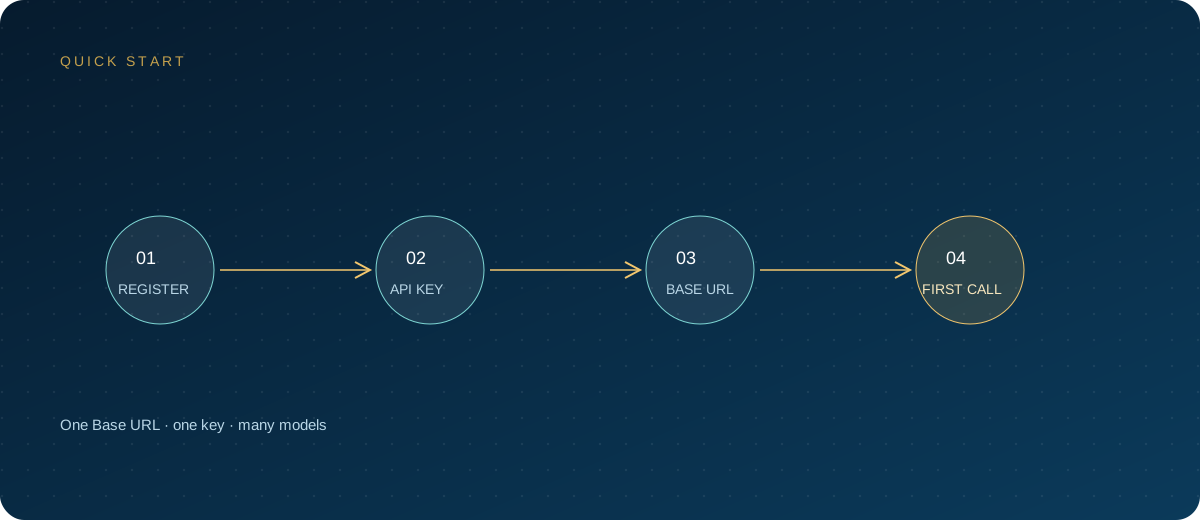
Cherry Studio is a popular desktop AI client that supports multiple providers, model switching, assistants, and knowledge bases. It does not provide models itself; the models come from the API you configure. Many users get stuck at the same step: what to enter for the Base URL, where to put the key, and how to add a model ID. This article walks through the complete process using common current versions.
Note: Cherry Studio is a product of its respective owner. This article is a technical integration guide only. Interface names and menu locations may change between versions; use your current version as the reference. For models and pricing, refer to the site's model pricing.
1. Three things to prepare before connecting
Whichever gateway you use, a custom provider needs only three parameters:
- API key: register with the ZSQH AI Gateway, create one in the console, and name it after the project or environment.
- Base URL: the gateway's OpenAI-compatible address, usually
https://ai.zhongshangqihang.com/v1. - Model ID: copy it from the model pricing page, and make sure you copy the API identifier rather than the display name.
Verify the key and model with a single command before configuring the client. It saves a lot of detours:
export ZSQH_API_KEY="sk-your-key"

curl "https://ai.zhongshangqihang.com/v1/chat/completions" \
  -H "Authorization: Bearer $ZSQH_API_KEY" \
  -H "Content-Type: application/json" \
  -d '{
    "model": "your-model-id",
    "messages": [{"role": "user", "content": "Reply with OK only"}]
  }'
If the response contains choices, then the key, address, and model are all working at least, and any remaining problem lies in the client configuration.
2. How to fill in the Base URL
The field names in Cherry Studio may change between versions; common labels are "API Address" or "API Host." Use the following values:
| Setting | Recommended value | Notes |
|---|---|---|
| Provider type | OpenAI | Uses the OpenAI-compatible protocol |
| API address | https://ai.zhongshangqihang.com/v1 |
No trailing slash |
| API key | sk-... |
Key created in the console |
| Model ID | Follow the pricing page | Double-check it, especially when adding manually |
Different versions handle /v1 differently: some append it automatically, while others require the full path. The diagnostic rule is simple: a 401 is usually a key problem, and a 404 is usually a path problem. If the full address returns 404, try removing /v1; if the domain alone returns 404, add /v1. Change only one variable at a time; do not switch the key, address, and model all at once.
3. Add a custom provider
Using a common current version as an example, the sequence is as follows (button names depend on your version):
- Open Cherry Studio and click the settings icon (gear) in the lower-left corner.
- Go to "Model Services" or "Model Providers."
- Click "+ Add Provider."
- Choose OpenAI as the provider type, or select the OpenAI-compatible option.
- Enter the provider name, API key, and API address.
- Save, return to the model list, and continue by adding the model ID.
If your version has no "Add Provider" option, upgrade the client first. Older versions may have different entry points and fields, and forcing an old tutorial onto them easily puts values in the wrong place.
4. Add a model ID
After saving the provider, there are two ways to add models:
- Fetch the model list: the client requests the available models from the gateway; once it succeeds, check the models you need.
- Add manually: click the "+" button and enter the model ID directly. Use this method when the gateway does not expose a model-list endpoint or when fetching the list fails.
The model ID must match the pricing page exactly, including capitalization, version suffixes, and hyphens. When adding manually, also confirm that the model type is "chat" or "conversation"; if the type is wrong, the model will not appear in the chat interface's selector.
| Model type | Common use | Notes |
|---|---|---|
| Chat model | Everyday Q&A, writing, code | Most common; configure this first |
| Reasoning model | Complex analysis, math, planning | Usually higher latency and cost |
| Vision model | Image understanding, screenshot Q&A | Confirm the gateway supports image input |
| Embedding model | Knowledge base, vector retrieval | The endpoint and model must be confirmed separately |
If you want to use a knowledge base, the embedding model must also be available on the gateway side. Configuring only a chat model will still cause errors when you upload documents. If that happens, first confirm whether the gateway provides an embedding endpoint, then decide whether to configure a separate embedding provider.
5. Verification and troubleshooting order
Once configured, start a new conversation, select the model you just added, and send "Reply with OK only." If it fails, troubleshoot in the following order rather than reinstalling the client right away:
| Symptom | Common cause | Fix |
|---|---|---|
401 Unauthorized |
Key is wrong, expired, or not saved | Paste the key again and check for leading or trailing spaces |
404 Not Found |
Wrong /v1 in the Base URL |
Add or remove /v1 as described in the previous section |
model not found |
Model ID is misspelled or not enabled | Copy the exact identifier from the pricing page |
| Model list fetch fails | Gateway does not expose a list endpoint | Add the model ID manually |
| Conversation stream breaks midway | Network fluctuation or timeout | Check the proxy, reduce concurrency, retry |
| Knowledge base error | Embedding model not configured | Configure a working embedding model separately |
One often-overlooked point: corporate networks or proxy software may block SSE streaming responses, which shows up as "requests go out but nothing comes back." Temporarily turn off streaming output to test. If non-streaming works, focus on the proxy and firewall.
6. Multiple models and daily use
The value of Cherry Studio is separating different tasks. A practical setup:
- Use a general model for everyday Q&A: fast responses and controllable cost.
- Use a long-context model for summarizing long documents, in its own assistant.
- Use a stronger coding model for code tasks.
- Prepare a dedicated embedding model for knowledge bases.
- Write clear system prompts for each assistant to avoid repeating instructions every time.
The more models you use, the more you need to control context length. Pasting an entire document into the conversation repeatedly makes every request more expensive. Put what you can into the knowledge base first, and use summaries where summaries are enough.
7. Security and team use
- Keys are stored locally on the client machine; consider operating-system account isolation when a computer is shared.
- Do not save long-lived keys on shared company equipment.
- Issue keys per project so you can monitor usage and revoke them on the gateway side.
- Do not paste customer privacy data, contract text, or unmasked data into the client.
- Check gateway usage regularly; if it grows abnormally, disable the key first, then investigate.
FAQ
Is Cherry Studio free?
The client itself can be used free of charge, but model usage fees are charged by the API provider you configure. Refer to the current client version and the gateway pricing page for specifics.
Why do I still get 401 after entering the key?
First confirm the key has no extra spaces, then confirm it belongs to the platform that matches the current Base URL. Keys from different gateways cannot be mixed. Also check whether the key has been deleted or its quota has run out.
Should the Base URL include /v1?
Follow the prompt in your current version. Most OpenAI-compatible configurations need /v1, but some clients append it automatically. The test is whether the request reaches /v1/chat/completions; if you get a 404, adjust the ending.
Can I use Claude or Gemini models?
Yes, provided the gateway offers those models in an OpenAI-compatible format and you enter the exact model ID. For models with different native protocols, some parameters may be incompatible; refer to the site documentation.
Can I use it offline after configuration?
No. The client is only an interface; inference happens on the remote API. Without a network connection or when the gateway is unreachable, conversations cannot complete.
Next steps
Configuring Cherry Studio is not complicated; the hard part is aligning the Base URL, key, and model ID. Run a curl test first, then configure the client. When something fails, troubleshoot in the order of 401, 404, and model not found. If you need a unified model endpoint and usage management, sign up for the ZSQH AI Gateway; models and pricing follow the model pricing page.
Related reading: