Cline is an open-source AI coding agent extension, commonly used inside the VS Code sidebar to read code, edit files, and run commands. It is not tied to a single model vendor: beyond the Cline account system, you can choose an OpenAI-compatible interface under API Provider and supply your own Base URL, key, and model ID. For teams, this means Cline can be connected to a unified gateway, with keys, usage, and models managed centrally.
This article follows the order of installation, configuration, verification, and team rollout. Cline updates quickly, so button and field names should be checked against the settings in your current version.
Note: Cline is a trademark of Cline Bot Inc. This article is for technical explanation only and implies no affiliation, agency, or endorsement relationship with Cline Bot Inc. Product features, interfaces, and billing rules are governed by Cline's official documentation.
1. Prepare three things before you start
Cline custom access requires only three pieces of information: a compatible endpoint, an API key, and the exact model ID. Prepare these on the gateway side before opening the editor.
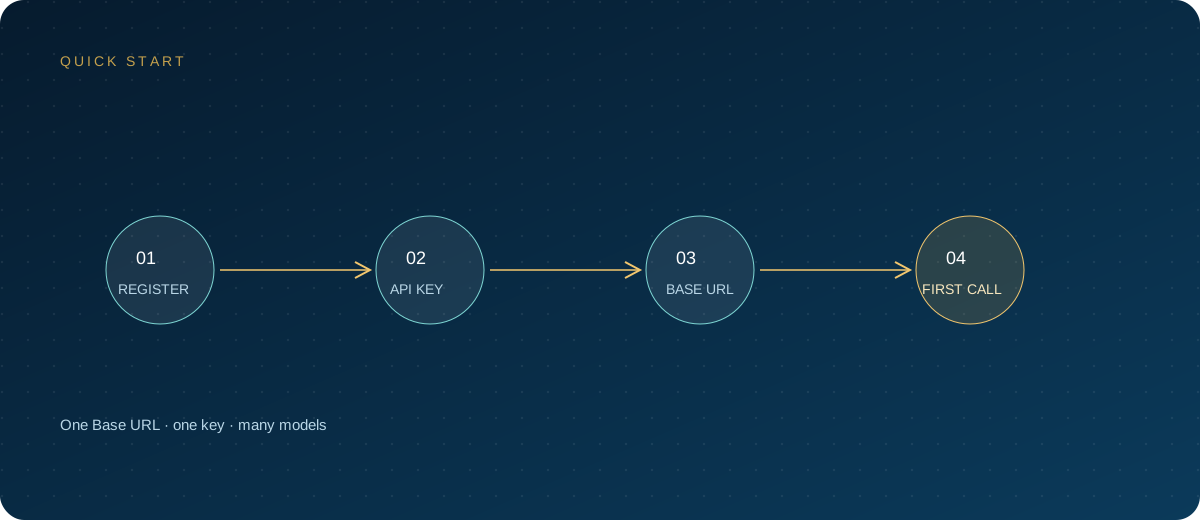
- Open the ZSQH AI Gateway sign-up page, register, and sign in to the console.
- Go to "API Keys", create a new key, and name it clearly for the user and device, for example
cline-zhang-macbook. - Set a spending limit and expiration time as needed. Even for personal testing, set them to prevent unexpected consumption.
- Copy the key and save it in a password manager. The console usually displays it in full only once.
- Open model pricing and copy the model ID you intend to use. Models and prices change; use what the page currently shows.
Record the three items as follows, which makes troubleshooting and handover easier:
Base URL: https://ai.zhongshangqihang.com/v1
API Key: sk-... (store only in a password manager)
Model: use the model ID currently shown on the "model pricing" page
Context Window: use the official specification for that model
The Base URL uses the OpenAI-compatible address and ends in /v1. Do not enter the website homepage, and do not append /chat/completions, or you may create a duplicated path and a 404.
2. Install Cline in VS Code
Installation itself is not complicated. What usually causes trouble later is workspace trust and permissions.
- Open VS Code and press
Cmd/Ctrl + Shift + Xto open the Extensions view. - Search for
Cline, check the publisher, then click Install. - After installation, find the Cline icon in the activity bar on the left and open the panel.
- On first launch you will see the configuration page. Choose to use your own API key; depending on the version, the wording may be Use your own API key.
- Enable it only in trusted folders. When opening an unfamiliar repository, do not let the agent run commands with auto-approve enabled.
The installation entry points for Cursor, Windsurf, and VSCodium are similar, but their extension marketplaces may differ. This article uses VS Code as the reference.
3. Choose an OpenAI-compatible provider
Open the gear icon in the upper-right corner of the Cline panel, then select OpenAI Compatible from the API Provider dropdown. This is the key step for connecting a general-purpose gateway.
Do not put a gateway key into the dedicated fields for OpenAI, Anthropic, or Google. Those fields usually carry their own default endpoints and authentication methods, and entering the wrong value commonly produces a 401, a 404, or a connection failure. Unless the gateway explicitly provides the corresponding native protocol, choose OpenAI Compatible.
Use Azure Identity Authentication applies only to Azure managed identity. Do not check it for an ordinary gateway key.
Choosing Cline's own provider consumes Cline account quota; choosing OpenAI Compatible and entering your own key sends requests to your gateway, with billing managed by the gateway. Do not mix the two when troubleshooting.
4. Enter Base URL, key, and model
The three core fields are filled in as follows:
| Field | Value | Notes |
|---|---|---|
| Base URL | https://ai.zhongshangqihang.com/v1 |
Keep /v1; do not include /chat/completions |
| API Key | The sk-... key created in the console |
One key per person; do not share it with other tools |
| Model | The model ID on the pricing page | Copy it exactly; watch case and version suffixes |
| Model Configuration | Context window, maximum output, and so on | Use the model's real specifications; do not overstate them |
| Azure Identity | Leave unchecked | Used only for Azure managed identity |
Model is a routing identifier, not a display name. A missing version suffix or inconsistent capitalization can return Model Not Found. If the dropdown does not list the model, you can usually type the model ID directly, depending on whether the current version allows it.
The Max Output Tokens, Context Window, Image Support, Computer Use, and price fields under Model Configuration are used mainly by Cline for context management and cost estimation; they are not the basis for gateway billing. If the context window is set too large, the agent will misjudge the available space, and the gateway will eventually report that the limit is exceeded. Enter the model's real specifications.
If a model does not support tool calling, agent capabilities such as reading and writing files and running commands will be limited. Image input and computer use also depend on the model's capabilities.
5. Verify that the configuration actually works
A passing Verify only means the address, key, and model name are roughly correct; it does not mean every tool-calling capability is usable. Run a real check as well.
- Create a new empty task to avoid interference from previous context.
- Explicitly select the model you just configured; do not use automatic selection.
- Send a read-only request, such as asking it to explain a small file in the current directory.
- Open the gateway console's usage or request logs and confirm a record with the same time, model, and key.
- Then ask for a small change that does not write files, and observe whether approval is required and whether it succeeds.
Common errors can be checked as follows:
- Invalid API Key or 401: the key is wrong, disabled, or was copied with spaces or line breaks.
- 403: the key lacks permission, the quota is exhausted, or the model is outside the allowed scope.
- 404 or Model Not Found: the Base URL path or model ID is wrong.
- 429: rate limiting was triggered, or the key's spending limit was reached.
- Timeout: the endpoint is unreachable, or there is a problem on the network path.
- Normal chat works but agent actions fail: suspect a model that does not support tool calling before blaming the key.
6. How to configure auto-approve permissions
Auto Approve is controlled by category: reading, editing, terminal commands, browser, and MCP tools. Each category can be toggled separately, and some distinguish between "safe commands only" and "all commands."
A sensible starting point is to allow reading project files only, leaving editing, terminal, browser, and MCP off. Enable them one at a time once the workflow is stable; when you enable editing, also enable Checkpoints so you can roll back.
Terminal commands carry the highest risk. Cline does not use a fixed allowlist; the model judges each command and its arguments. Builds, tests, and git status are usually treated as safe, while npm install, rm -rf, mv, and sed -i usually require confirmation. This judgment is not a security boundary and cannot replace human review.
YOLO mode skips all confirmations, including file modifications, terminal commands, browser actions, and MCP calls, and the official documentation explicitly warns about the risk. If you want to try it, do so in a disposable repository or sandbox, with a Git backup prepared in advance. Checkpoints help with rollback, but they are not a backup and do not cover operations outside the repository.
7. Team rollout steps
- Start with a small pilot: choose three to five developers, standardize on one primary model, and run for a week.
- Record request success rate, average latency, and daily consumption per person.
- Create an independent key for each person on the gateway, with per-person limits and expiration dates. Do not use a shared key.
- Maintain a model mapping table: what is entered in Cline, what it maps to on the gateway, and what to switch to on failure.
- Write the Base URL, model IDs, permission settings, and common errors into internal documentation.
- Standardize the extension source and version to avoid installing repackaged builds of unknown origin.
- Put project conventions in a repository rules file. Newer versions use a
.cline/directory; earlier versions commonly use.clinerules. Follow the documentation for your version, and never put secrets in a rules file. - When someone leaves, changes machines, or a project ends, disable the corresponding key that day.
Base cost estimates on model pricing. Calculate from actual request volume and context length; do not judge by the subjective feel of a single task.
8. Security and data boundaries
- Keys may be stored in local configuration files. Newer versions place provider configuration in
~/.cline/data/settings/providers.json, which may contain the key. Do not commit it to a repository or sync it to public cloud storage. - Enable disk encryption and restrict local permissions. On a shared computer, do not keep keys stored long term.
- The agent reads workspace files. Exclude
.env, credentials, and private keys from its readable scope. If the current version supports ignore-file configuration, configure and verify it proactively. - MCP servers, plugins, and hooks may execute code or access the network. Install only from trusted sources and read their permission descriptions.
- Auto-approve amplifies prompt-injection risk. When the agent reads web pages, issues, or unfamiliar repositories, malicious instructions inside them may induce it to run commands. Keep human confirmation for terminal and network operations.
- Confirm that data leaves the local machine and where it flows before deciding which repositories are allowed. Assess sensitive code first.
9. FAQ
Can Cline connect to any OpenAI-compatible interface?
In most cases yes, provided the interface is compatible with the paths and parameters Cline actually calls and the model supports tool calling. Verify with ordinary chat first, then test file editing and terminal operations.
Should the Base URL be the root address or include /v1?
For the OpenAI-compatible protocol, enter it up to /v1, such as https://ai.zhongshangqihang.com/v1. Do not include /chat/completions, or the path will be duplicated.
Verify passes, but tasks fail. Why?
Check the error code and gateway logs first. Common causes are a model that does not support tool calling, an inaccurate context window, insufficient quota, or rate limiting. Verify only checks basic connectivity and does not cover every capability.
What is the difference between Cline's own account and entering your own key?
Cline's own account consumes Cline-side quota; requests with your own key go to the gateway you specify, which bills and records them. The model range, data path, and troubleshooting approach differ.
Can a team share one key?
It is technically possible but not advisable. A shared key cannot distinguish usage, and if it leaks it is hard to trace and contain. One key per person, with limits, expiration, and logs, is more reliable.
Next steps
Start by signing up for ZSQH AI Gateway, create a dedicated key for Cline, and enter the Base URL and model as described above. Once read-only tasks work, gradually enable editing and terminal permissions, and adjust the primary model and limits according to model pricing.
Related reading: