Dify puts prompt orchestration, knowledge bases, workflows, and agents into one visual interface. It does not produce models itself; its capability comes from the providers you connect. A common pattern for teams in China is to self-host Dify and connect a unified API gateway through an OpenAI-compatible endpoint, leaving key, model, and usage management on the gateway side.
This article follows the order of deployment, adding a provider, filling in parameters, building a minimal workflow, team use, and security hardening. Interface, plugin, and variable names follow the current vendor documentation; models and prices follow the in-site model pricing page, and prices may change.
Note: Dify is a trademark of its owner. This article is an independent technical note and implies no affiliation with the vendor.
1. Cloud or self-hosted
Dify offers a cloud service and a community edition for self-hosting. Cloud saves operations work and suits quick validation; self-hosting keeps data on your own servers and suits teams with requirements around network, data, and permissions.
- Trial only: cloud is faster, but confirm data location and network reachability.
- Internal models or custom plugins: self-hosting is more flexible, but you own upgrades, backups, and HTTPS.
- Long-term team use: either way, plan member permissions, key management, and budget.
2. Docker Compose deployment
Running the community edition with Docker Compose is the usual choice. The documented minimum is 2 CPU cores and 4 GiB of memory; on macOS, give the Docker Desktop virtual machine at least 8 GiB. Linux needs Docker 19.03 or later and Compose 2.24 or later.
- Clone the repository at the latest release tag; you need
git,curl, andjq. - Change into
dify/dockerand copy.env.exampleto.env. - Run
docker compose up -dto start the services. - Check status with
docker compose psand wait until the services are ready. - Open
http://your-server-address/installto create the administrator, then sign in from the root address.
git clone --branch "$(curl -s https://api.github.com/repos/langgenius/dify/releases/latest | jq -r .tag_name)" https://github.com/langgenius/dify.git
cd dify/docker
cp .env.example .env
docker compose up -d
docker compose ps
Access is on port 80 by default, and the setup entry point is /install. The number of containers changes between versions, so do not copy the count from older tutorials; init_permissions showing Exited is usually a one-off task and is normal.
Configuration lives in .env, which overrides same-named variables under envs/. After a change, run docker compose down and then up -d. Read the release notes for your target version before upgrading, compare the new variables in .env.example, and do not carry over an old compose file unchanged.
3. Add an OpenAI-compatible model provider
Only the workspace owner and administrators can manage model providers. The entry point is usually Integrations or Model Provider in settings: install the OpenAI-API-compatible plugin, then click Setup and enter credentials. Names change between versions; if you cannot find it, follow the current documentation.
The typical order for adding a model is:
- Install or enable the OpenAI-compatible plugin.
- Enter the API key and a custom Base URL.
- Save and wait for credential validation to pass.
- Add a model and choose its type.
- Enter the model name, context length, and capability toggles.
- Validate with the test entry point or a minimal app.
| Field | How to fill it in | Common mistake |
|---|---|---|
| Base URL | Usually ends at /v1, e.g. https://ai.zhongshangqihang.com/v1 |
Appending /chat/completions returns 404 |
| API key | Paste the whole string; do not add Bearer manually |
Stray spaces, newlines, or quotes cause 401 |
| Model name | Match /v1/models or the model pricing page |
Wrong case or date suffix returns model not found |
| Model type | LLM, Embedding, Rerank, speech, and so on by purpose | Wrong type makes the model invisible in apps |
| Context length | Use the value the provider actually supports, with headroom | Setting the theoretical maximum gets long requests rejected upstream |
| Capability toggles | Enable streaming, function calling, and vision only where supported | Agent tool calls fail or image uploads are rejected |
You can add several models under one provider, configuring each separately. Name them by purpose or version. Once an embedding model is used for a knowledge base, its dimensions are fixed, and switching models usually requires rebuilding the index.
4. Preflight with curl, then test in Dify
If you test only inside Dify, a failure is hard to attribute to the gateway, the network, or a field. Validate upstream with curl first:
export ZSQH_API_KEY="sk-your-key"

curl -sS "https://ai.zhongshangqihang.com/v1/chat/completions" \
  -H "Authorization: Bearer $ZSQH_API_KEY" \
  -H "Content-Type: application/json" \
  -d '{"model":"your-model-id","messages":[{"role":"user","content":"Reply with OK only"}]}' \
  -w "\nHTTP %{http_code}\n"
A response containing choices means the key, address, and model name are valid. A 401 points to the key, a 404 to the path, and model not found to the model name. Set the Base URL to /v1, not the full endpoint path; do not add Bearer to the key yourself, because Dify adds it.
Dify validates credentials when you save a provider, but passing validation does not mean every model works; also check the type, context length, and capability toggles. If there is no test button, create a minimal chat app or call the app API.
5. Build a minimal workflow
Get the smallest chain working before adding nodes. Take a workflow as an example:
- Create a Workflow or Chatflow in Studio: choose Chatflow for conversational use, Workflow for batch or automation.
- Define an input variable on the start node, such as
query. - Add an LLM node, select the provider and model you just connected, and reference the start-node variable in the prompt.
- Add an end node and wire the LLM output to the output variable.
- Run a real question in test mode and inspect each node's input, output, and token usage.
- Publish once it looks right, then call it through an embedded page or the app API.
For retrieval, add a knowledge retrieval node before the LLM and configure the embedding and rerank models in workspace settings first. For branching, add question classification or conditional branches. An agent node suits tool-calling scenarios, but choose a model that supports function calling and validate tool calls on their own before wiring them into the main flow.
Each LLM and agent node can select its own model; nodes without a selection fall back to the workspace default. Use small models for simple classification, rewriting, and extraction, and a strong model for final generation. Bind key nodes explicitly so behavior does not drift when the default model changes.
6. Team use: members, keys, and environments
Workspace members are usually divided into owner, administrator, editor, and normal member, with permissions depending on version and plan. Provider credentials belong to the whole workspace rather than to an individual, so keep the number of administrators small.
- Use different provider credentials or keys for development and production so limits and revocation stay separable.
- Generate a separate API key for each app; an app key acts only on that app but covers all of its end users.
- Callers should distinguish end users with the
userparameter, and app keys must not be embedded in front ends or client code. - The Dify Cloud service API root is
https://api.dify.ai/v1; for self-hosting, use your own domain plus/v1. - Send
Authorization: Bearer <key>and call only from a backend.
When several people edit, agree on naming, variables, and a release process up front; otherwise workflows become hard to maintain quickly. For external apps, also agree on version release and rollback, and do not edit prompts directly on a production app.
7. Security and operations checklist
- Use HTTPS; do not expose port 80 directly. A reverse proxy should handle certificates and access control.
- After setup, restrict
/install, use strong passwords, and enable two-factor authentication where available. - Keep secrets only in
.envor a secrets manager, never commit them, and rotate them when members change. - Open only necessary ports in the firewall; do not expose the database or vector store to the public internet.
- Configure the self-hosted SSRF proxy and network egress per current documentation; read the
.envnotes before changing networking. - Back up PostgreSQL, uploaded files, and
.envregularly, and rehearse a restore. - Back up before upgrades, pin release tags, and follow the notes for that version.
- Set budgets, concurrency limits, and alerts on the gateway side to avoid runaway loops consuming quota.
- Run only code you have reviewed in code nodes; do not treat them as a general security boundary.
Security is not a one-time configuration but a process to revisit at every upgrade, membership change, and key rotation.
8. Common errors quick reference
401authentication error: wrong key or extra characters; paste again and confirm it is the key for that provider.404ormodel_not_found: wrong Base URL path or mismatched model name; check/v1and the model identifier.- Request timeout: Dify cannot reach upstream, or upstream is slow; check DNS, firewall, proxy, and SSRF settings.
- Provider will not install: plugin marketplace unreachable or version incompatible; check the network and current documentation.
- Model missing from an app: wrong type, or the node is not bound; check the provider model list and node configuration.
- Knowledge retrieval problems: embedding dimensions do not match or the index is incomplete; switch models or rebuild the index.
FAQ
What is the minimum configuration for self-hosted Dify?
The current documentation lists 2 CPU cores and 4 GiB of memory; on macOS, give the Docker Desktop virtual machine at least 8 GiB. Real needs also depend on concurrency and knowledge-base size, so leave headroom in production.
Should I choose Dify Cloud or self-hosting?
Choose cloud for quick validation without operations work; choose self-hosting when data must stay on your servers or you need internal services or custom plugins. Both can connect OpenAI-compatible models; the difference is operational responsibility and network boundaries.
The provider was added successfully, but the model is missing from my app. Why?
First check the model type, for example whether an embedding model was added as an LLM. Then confirm the model was added under that provider and that the app or node is bound to it. Some nodes accept only models with specific capabilities.
Must every node in a workflow select its own model?
You can select per node or use the workspace default. For multi-node flows, split by task: small models for classification and extraction, a strong model for final generation, and explicit binding for key nodes so behavior does not drift when the default changes.
Can a team share one API key?
It works, but it is not recommended. A shared key cannot distinguish callers, has a larger blast radius if leaked, and is hard to limit. Issue keys per app or environment, distinguish end users with the user parameter, and rotate regularly.
Next steps
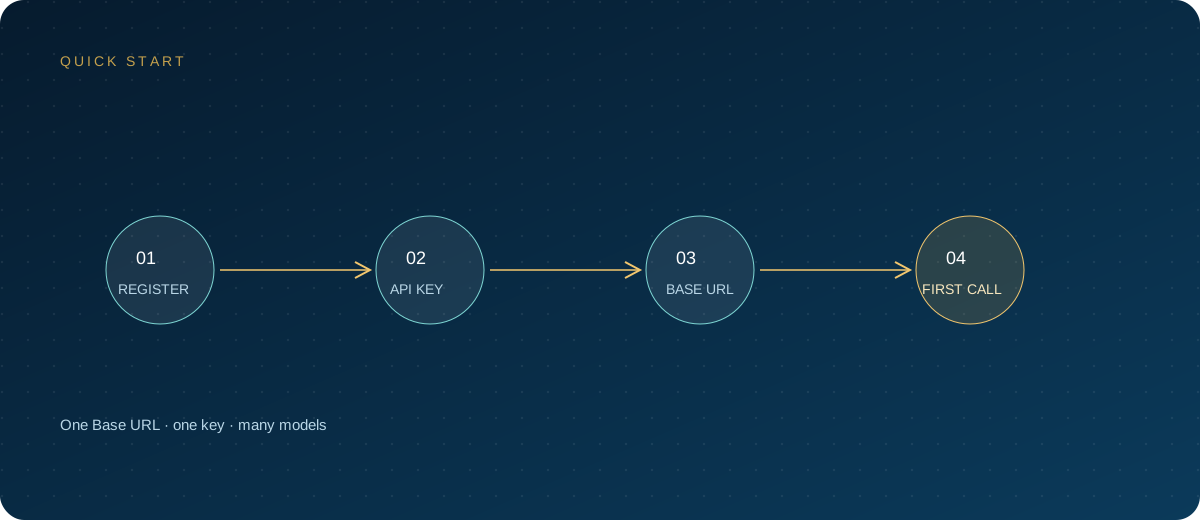
Dify integration breaks into four steps: get an instance running, validate upstream with curl, fill in model parameters based on real capabilities, and validate node bindings with a minimal workflow. If you want a unified OpenAI-compatible entry point and usage management, register for the ZSQH AI Gateway; models and billing are listed on the model pricing page.
Related reading: