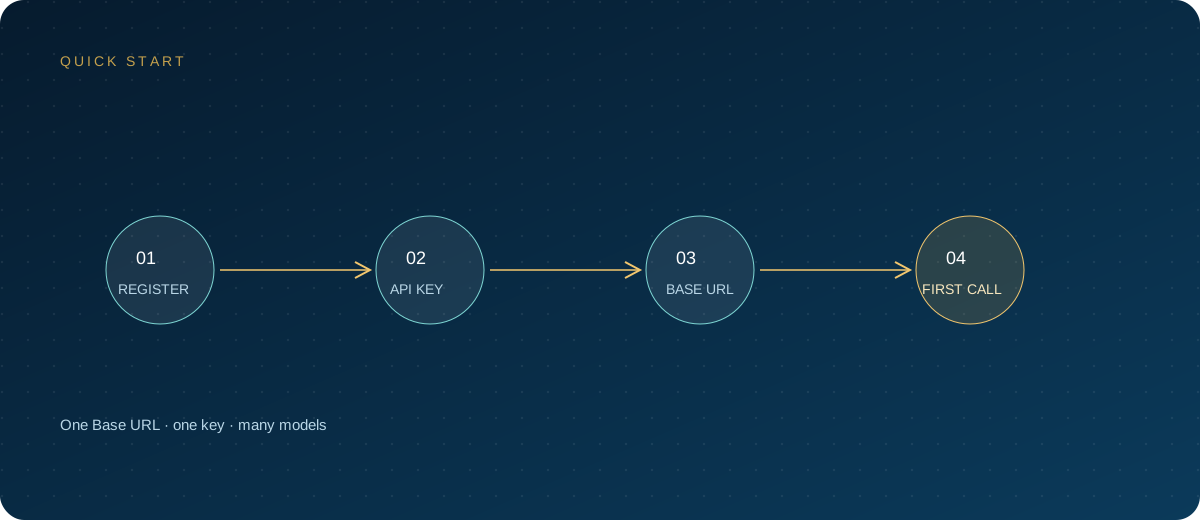
A Kimi API key is the credential for calling the open platform. It is not the same as a web membership, and it is not the same as account balance. Many teams stall on their first integration not because they do not understand the model, but because they signed up on the wrong site, stored the key in the wrong place, or treated a membership account as an API account.
This article follows the actual order of operations: first separate the account systems, then walk through registration, verification, and key creation, then cover storage, rotation, and 401 troubleshooting, and finally compare official keys with gateway keys. Models and prices follow the in-site model pricing page.
Note: Moonshot and Kimi are trademarks of their respective owners. This article is for technical integration discussion only. Platform entry points, verification requirements, and key management rules may change; defer to the current official console pages.
1. Distinguish the Three Kinds of "Kimi Accounts" First
| Type | Entry point | Purpose | Balance and key |
|---|---|---|---|
| Kimi web and app membership | kimi.com | Chat product | Independent of the API |
| Kimi open platform (China site) | platform.kimi.com | Domestic API calls | Separate account, balance, and keys |
| Kimi open platform (international site) | platform.kimi.ai | Overseas API calls | Fully independent of the China site |
Keys from the China site and the international site cannot be mixed. Configuring a China-site key against the international endpoint, or the reverse, commonly produces a 401. There is also a third path: create a gateway key on the ZSQH AI Gateway and use it to call multiple models, including Kimi. The key is managed by the gateway, and the balance sits in the gateway account.
Decide which site your business will use before registering. Do not look for a key inside a membership account while topping up on the open platform; these are two different products.
2. Registration and Identity Verification
- Open platform.kimi.com and complete registration and sign-in as prompted.
- Go to the user center and complete individual identity verification; for enterprise use, complete enterprise verification.
- Enterprise verification usually requires the company name, a bank account matching the registered entity, and the unified social credit code.
- The platform deposits a random amount into the company's corporate account. Confirm it with finance and enter the amount; if it matches, verification passes.
- Top up only after verification. Individuals can pay online; enterprises can also use corporate transfer.
- Return to the console and confirm account status, balance, and available models.
The verified entity can only change from individual to enterprise; changing an enterprise back to an individual is not supported. Decide which entity to use at registration. Invoicing, contracts, and procurement are usually tied to that entity too, and changing it later is painful.
3. Steps to Create an API Key
- After signing in, go to
https://platform.kimi.com/console/api-keys. - Click create API key and name it by project, environment, and purpose, for example
crm-prod-chat. - Copy the generated key. If the page shows it only once, store it in a secret manager on the spot; do not leave it in a chat log.
- Send a minimal request from the test environment to confirm that the key, site, and model name are all correct.
- Record the creation time, owner, bound project, and planned rotation date.
- Use separate keys for production, testing, and personal debugging; never share one key across a team.
The permission scope of a key, and whether it can be narrowed by project or member, depends on the options the console actually provides. Do not assume a permission exists if the console does not offer it; when isolation is needed, use multiple accounts or multiple keys plus application-level quotas.
4. Rotation, Revocation, and Permission Scoping
Treat a key as a credential with a lifecycle, not something created once and used forever.
- Rotate on a schedule: rotate ordinary projects every 90 days; core workloads can use a shorter interval.
- Rotate immediately on personnel changes: when someone leaves, changes role, or a contractor engagement ends, revoke first and reissue afterwards.
- Revoke immediately on a leak: do not watch usage first; disable the key, then investigate.
- Overlap the rollout: create the new key, deploy and validate it, then revoke the old one, so the switch does not cause an outage.
- Least privilege: one key serves one project or one environment, keeping the blast radius controllable.
- Leave an audit trail: logs should record only the key prefix and name, never the full value.
Rotation is not a formality. Many "quota suddenly drained" incidents trace back to an old key left in a script, repository, or chat log.
5. Secure Storage: Environment Variables Are Only the Beginning
The baseline is simple: do not write keys into code. Use .env for local development and make sure Git ignores it; in production, use the platform's secret management service or inject environment variables.
# Keep .env local only; never commit it to the repository
MOONSHOT_API_KEY=your-key-here

# .gitignore should contain at least
.env
.env.*
Then do three more things:
- Never let a key appear in a frontend, mobile app, or browser extension; route every call through a server.
- Filter the
Authorizationheader in logs, error reporting, and APM so keys are never printed in full. - Use dedicated secret management in CI/CD; do not echo secrets in plaintext from build scripts.
If several people share one development machine, environment variables are not enough isolation. A safer pattern is one development key per person, with usage recorded per person, so incidents can be traced back to an individual.
6. 401 Troubleshooting Order
A 401 does not always mean the key is wrong. Check in the following order; it usually takes only a few minutes to pinpoint the cause.
| Symptom | Common cause | Action |
|---|---|---|
invalid_authentication_error |
Malformed key, deleted key, incomplete copy | Recreate and copy the full key |
incorrect_api_key_error |
Key missing, header misspelled | Check Authorization: Bearer |
| 401 right after an environment change | China-site and international-site keys mixed | Align site and base URL |
403 permission_denied_error |
IP allowlist, API not enabled | Check console permissions and network egress |
| 404 | Wrong base URL or model name | Check the model list and endpoint path |
Check item by item:
- Which site the key belongs to, and whether the base URL matches.
- Whether the key has leading or trailing spaces, newlines, or quotes.
- Whether the environment variable is actually loaded; print only the first few characters to confirm.
- Whether the key was deleted, disabled, or already rotated.
- Whether the header is
Authorization: Bearer <key>. - Whether the path is
/v1/chat/completions, with no extra or missing/v1. - Retest with a new key to separate a key problem from a gateway configuration problem.
7. Official Key vs Gateway Key
| Dimension | Official direct access | ZSQH AI Gateway |
|---|---|---|
| Creation entry | Kimi open platform console | Gateway console |
| Account system | China site or international site | Gateway account |
| Settlement | Platform top-up, invoicing under platform rules | RMB top-up, invoicing under gateway rules |
| Model coverage | Kimi series | Unified entry for multiple models |
| Best for | Kimi only, needing official direct access | Multi-model switching, unified billing and keys |
If you use only Kimi, your team is in mainland China, and official access is smooth, direct access is the least effort. If you also need DeepSeek, GLM, or Claude, or want one key for several models and a single RMB bill, a gateway is a better fit. The two paths are not in conflict: start with the gateway for testing, then decide which path production should take.
8. Team Rollout Checklist
- Define the API-using entity and complete the corresponding verification.
- One account per site; do not mix the China and international sites.
- One key per project and one key per environment.
- Keys go only into a secret manager, never into a repository.
- Set a rotation interval and name an owner.
- Enable balance alerts so an unpaid balance does not cause rejected calls or 429 responses.
- Distinguish 401, 403, and 429 in monitoring; do not treat all of them as "key invalid".
FAQ
What should I do if a key leaks?
Revoke or delete the key in the console immediately, create and deploy a new key, then review usage and billing. Do not just change the string in your code: the old key remains usable until it is revoked.
Can one key serve multiple projects?
Technically it often can, but it is not recommended. Sharing one key across projects makes usage, rate limiting, and incidents impossible to attribute. Split keys by project and add application-level quotas; troubleshooting becomes cheaper.
Do Kimi API keys expire?
Whether an expiry can be set depends on the current console rules. Even if the platform does not force expiration, rotate proactively, especially after personnel changes or for keys that have gone unused for a long time.
Why do I still get a 401 after topping up?
First confirm that the top-up and the key belong to the same site and the same entity. Then test with a newly created key to rule out a deleted old key, an unrefreshed environment variable, or an old value hard-coded in the application.
Can official keys and gateway keys be mixed?
No. Their base URLs, authentication systems, and balance accounts are all different. Mixing them typically produces a 401 or 404; when switching, change the key, base URL, and model name together.
Next Steps
Start by creating a test key on the ZSQH AI Gateway, validate the path with a minimal request, then split production keys by project. Available models and billing follow the model pricing page.
Related reading: