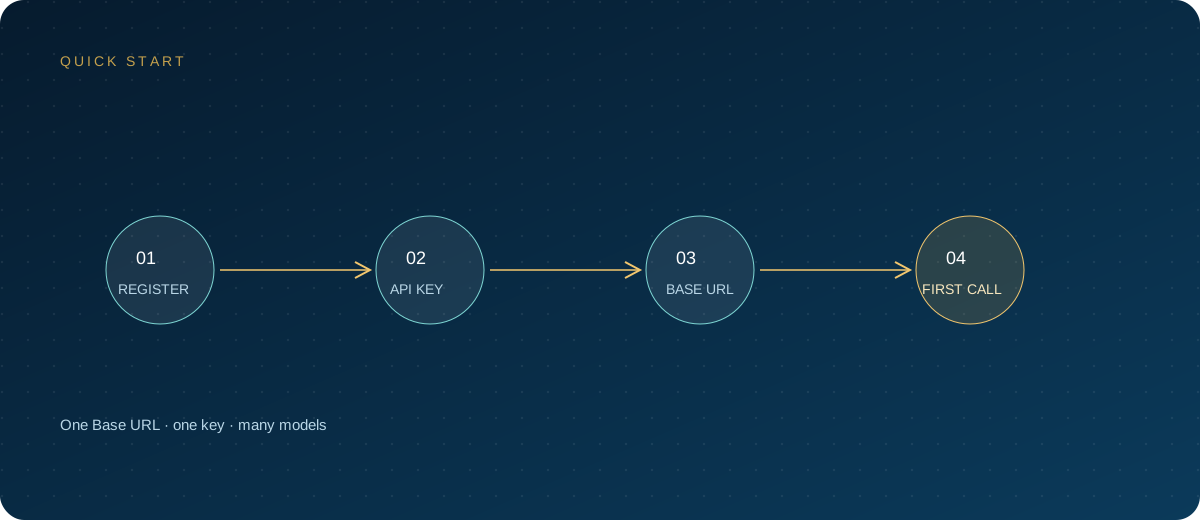
LobeChat is an open-source AI chat application, and the project and its container images are increasingly branded LobeHub. It does not provide models on its own; answer quality depends on the API provider you connect. For teams that use a unified gateway, the value is straightforward: one Base URL and one key let you switch between multiple models, while usage stays visible in a single place.
This guide follows common versions as of 2026. It moves from deployment choice to provider configuration and connectivity checks, then covers assistants, plugins, knowledge bases, and team deployment. Interfaces and environment variable names change between releases, so check the current documentation before you start.
Note: LobeChat and LobeHub are products and trademarks of their respective owners, and OpenAI is a trademark of OpenAI, Inc. This article is a technical integration guide only and implies no affiliation or partnership with those companies. Model availability and pricing are governed by the site's model pricing page.
1. Choose a deployment model first
LobeChat can run only on your local machine, or it can be deployed to a server for a team. The two scenarios have different dependencies:
| Method | Suitable scenario | Main dependencies | Watch out for |
|---|---|---|---|
| Single container | Personal trial, feature validation | Docker, PostgreSQL | Fastest way to get running; add storage and backups before long-term use |
| Docker Compose | Long-term team use | PostgreSQL, S3-compatible storage, optional Redis | The recommended setup, with the full feature set |
| Managed hosting such as Vercel | Light trial, minimal operations | External PostgreSQL, S3 | Serverless has function timeouts and does not support WebSocket |
Server-side releases in 2026 treat PostgreSQL as a required component. Knowledge bases also need pgvector and full-text search extensions, and file uploads need S3-compatible storage. Older versions once offered a browser-only mode, but current versions center on server deployment, so confirm the dependencies for your release before you begin. If the instance is meant for a team, prepare the Compose route from the start and you will avoid rework later.
2. Prepare three parameters
Whichever deployment you choose, connecting a custom API requires only three things:
- Base URL:
https://ai.zhongshangqihang.com/v1, the OpenAI-compatible entry point. - API Key: create one in the console after you sign up for the ZSQH AI Gateway, and name it after the project or environment.
- Model ID: copy the API identifier from the model pricing page, not the display name shown on the website.
The last two are where mistakes cluster. A pasted key may carry a trailing space, and a model ID may include or omit a version suffix or differ in capitalization. Store the key in a password manager before you open the configuration screen.
3. Start the service and load environment variables
For team deployments, keep configuration in an environment file rather than baking it into the image or a code repository. The minimal example below uses placeholders; replace the database, storage, and secret values with your own:
# lobehub.env example — generate your own secrets and keep them safe
APP_URL=https://chat.example.com
DATABASE_URL=postgres://postgres:change-me@postgres:5432/postgres
AUTH_SECRET=generate with openssl rand -base64 32
KEY_VAULTS_SECRET=generate a separate value the same way
OPENAI_API_KEY=sk-your-gateway-key
OPENAI_PROXY_URL=https://ai.zhongshangqihang.com/v1
OPENAI_MODEL_LIST=-all,+your-model-id
Mount the file when you start the container:
docker run -d --name lobehub -p 3210:3210 \
  --env-file lobehub.env lobehub/lobehub
Wait until the startup log shows the database migration completed and Ready, then open http://your-server-address:3210. If the log stops at a database connection failure, check the host, port, and password in DATABASE_URL first; inside a container, localhost does not mean the host machine. Pin a version tag before upgrading an image instead of running latest indefinitely.
4. Add an OpenAI-compatible provider in the interface
Environment variables suit shared configuration, while interface settings suit a personal trial or a temporary adjustment. On a current common version:
- Sign in, open Settings, and go to "AI Providers".
- Select OpenAI, or add a custom provider and give it a clear name such as "Team Gateway".
- Enter
https://ai.zhongshangqihang.com/v1as the API address, stopping at/v1. - Paste the gateway key and confirm there are no extra spaces.
- Add the model ID to the model list, and tick vision, tool calling, file handling, or other capabilities according to what the model actually supports.
- Save, then set the provider as default or select the model manually in a conversation.
Custom providers support capability tags, and this is often overlooked. An incorrect tag does not raise an error immediately, but it can make plugins, image understanding, or file uploads fail mid-task. When unsure, enable fewer capabilities, validate with a real task, and add the rest afterwards.
5. Verify: curl first, then chat
Do not start real work right after configuration. Confirm the chain with a minimal request first:
export ZSQH_API_KEY="sk-your-key"

curl -sS "https://ai.zhongshangqihang.com/v1/chat/completions" \
  -H "Authorization: Bearer $ZSQH_API_KEY" \
  -H "Content-Type: application/json" \
  -d '{"model":"your-model-id","messages":[{"role":"user","content":"Reply with OK only"}]}'
If the response contains choices, the address, key, and model are at least reachable. Then return to LobeChat, start a new conversation, select the same model, and send "Reply with OK only". Once both steps pass, move on to assistants and knowledge bases.
Common status codes point clearly at a cause: 401 calls for checking the key and stray spaces, 404 for the /v1 path, model not found for whether the model ID matches the pricing page, and 429 for gateway usage and concurrency. Change one variable at a time, otherwise you cannot tell which change took effect.
6. Assistants: assign models to specific tasks
Assistants, also called agents in newer versions, store system prompts, models, and parameters. A practical approach is to divide them by task rather than piling every model into the default list:
- Use a fast, cost-controlled general model for everyday questions.
- Create separate assistants for long-document summaries and contract review, pair them with long-context models, and write the output structure into the prompt.
- Use a model with stable coding ability for code tasks, and require it to explain changes before executing them.
- Create one assistant for translation and another for editing, with a fixed glossary and tone requirement.
Each assistant should solve one class of problem; shorter prompts are easier to maintain. Teams can turn frequently used assistant prompts into templates and distribute them, but never put keys inside those templates.
7. Plugins and knowledge bases: confirm dependencies first
Plugins depend on a model's function-calling ability. When a model does not support tool calling, the plugin button may still be clickable, but the call will fail. If you run your own plugin marketplace, you also need to configure the plugin index address and any keys the plugins require. Install only plugins from trusted sources, and review what data they can read.
Knowledge bases have more dependencies. A common combination is PostgreSQL, pgvector, S3-compatible storage, and an embedding model. Current versions default to an OpenAI embedding model, and you can specify another compatible provider through environment variables. When connecting a gateway, first confirm that it offers an embeddings endpoint and the corresponding model; without them, semantic retrieval in the knowledge base cannot work.
Import one or two files with known answers and test retrieval with specific questions before uploading in bulk. Chunk size, file format, and scan quality all affect results, so avoid changing several settings at once.
8. Team deployment: centralize configuration, distribute keys
For team use, a few boundaries are worth keeping:
- Put only shared configuration and default models in server environment variables; keep keys in secret management and out of Git.
- Give each member their own gateway key, named per person, so it can be revoked individually after departure or exposure.
- Include both the database and S3 in the backup plan, and treat backup files as sensitive data.
- Any public deployment should use HTTPS, with access control at the reverse proxy.
- Disable proxy buffering for streaming responses, or answers may arrive all at once or stall midway.
- Set budgets and concurrency limits on the gateway side, and review usage reports regularly.
For a small internal team, issue keys per project at the gateway and use LobeChat's account system to distinguish users. With records at both layers, troubleshooting and billing become much easier.
FAQ
What is the relationship between LobeChat and LobeHub?
LobeChat is the project's earlier name. New 2026 documentation and images use the LobeHub brand. Features continue across the rename, but environment variables and interface entry points have changed, so follow the current official documentation when deploying.
Should the Base URL include /v1?
Yes. Enter https://ai.zhongshangqihang.com/v1 and stop there; do not enter the full /chat/completions path, because the client appends it. A few proxies forward /v1 themselves, so rely on the actual test result.
Why is the model list still empty after configuring environment variables?
First verify the variable name and syntax for OPENAI_MODEL_LIST; -all,+model-id uses ASCII commas with no spaces. After changing environment variables, recreate the container. A simple restart may not load the new values.
The knowledge base uploaded successfully but retrieval returns nothing. Why?
Check dependencies in order: whether the database has the vector extension installed, whether S3 is writable, and whether the embedding model is callable. If any one of the three is missing, files may appear uploaded but no index can be built.
Can a team share a single key?
It is not advisable. A shared key cannot separate usage, and one exposure affects the whole group. Issue keys per person, per project, or per environment, and manage quotas and logs at the gateway.
Next steps
Connecting LobeChat comes down to three steps: choose the right deployment method, align the Base URL, key, and model ID, then verify with curl and one real conversation. Once that works, add assistants, plugins, and knowledge bases gradually and you will hit far fewer problems. If you need a unified model entry point and usage management, sign up for the ZSQH AI Gateway; available models and prices are listed on the model pricing page.
Related reading: