Roo Code is a coding agent commonly used inside VS Code. It supports multiple modes, per-mode model assignment, and OpenAI-compatible custom providers. For teams in China, connecting it to a unified gateway can fix the access path, consolidate billing, and keep quotas under control per project.
One change needs to be stated up front: according to the Roo Code repository announcement, Roo Code Inc. discontinued the Roo Code extension on May 15, 2026, and archived the main repository the same day. The final version was v3.54.0. The community fork Zoo Code continues maintenance and preserves most of the original configuration approach. This article focuses on Zoo Code while noting where the older Roo Code differs.
Note: Roo Code is a trademark of Roo Code, Inc.; Zoo Code is a community fork; VS Code is a trademark of Microsoft Corporation; OpenAI is a trademark of OpenAI, Inc. This article is a technical note and implies no affiliation or partnership with those parties. Project status, interface, and menus are subject to the repository announcement and the documentation of the current version.
1. Confirm whether you are running Roo Code or Zoo Code
The two share a very similar panel and provider configuration, but their maintenance status differs:
- Roo Code: the extension ID is
RooVeterinaryInc.roo-cline. The main repository was archived on May 15, 2026, and the extension no longer receives updates. An installed copy may still run, but it will not receive fixes or new-model support. - Zoo Code: forked from Roo Code by the community under the Apache-2.0 license, published on the VS Code Marketplace as
ZooCodeOrganization.zoo-code, with documentation at docs.zoocode.dev. It keeps the Code, Architect, Ask, and Debug modes. - The original settings directory,
.roomodes,.rooignore, and related conventions are preserved, so migration can usually carry them over. Follow Zoo Code's migration documentation for the specific steps. - When standardizing a team, confirm that everyone installed the same extension. Mixing old Roo Code and Zoo Code can produce inconsistent menus and settings.
2. Prepare a key, Base URL, and model
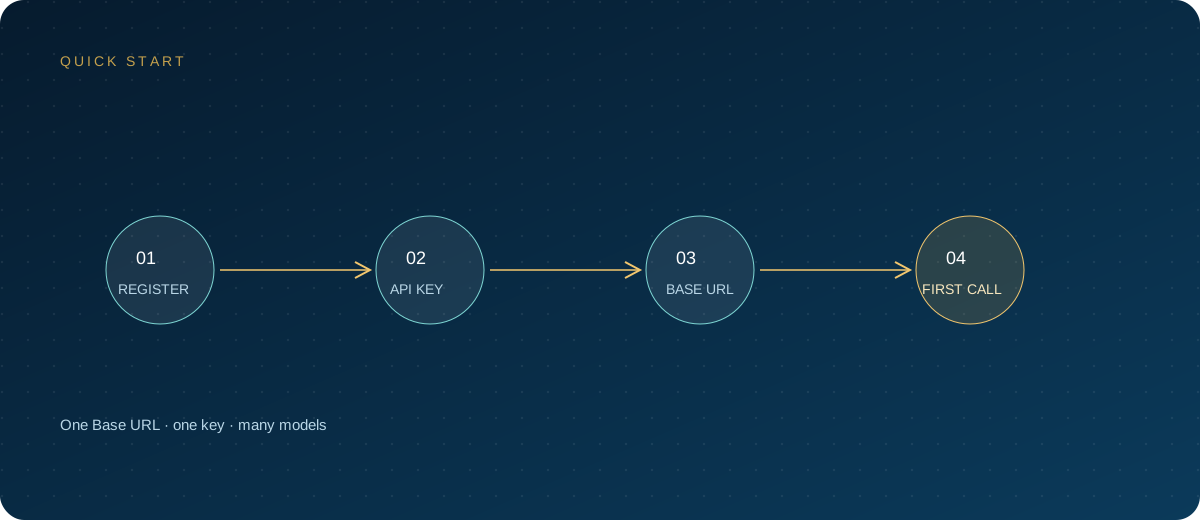
Have three things ready before you start: an API key, an OpenAI-compatible address, and an accurate model ID.
- Open the ZSQH AI Gateway sign-up page, register, and sign in to the console.
- Go to API Keys, create a key, and name it clearly by purpose, for example
zoo-code-work-laptop. - Set a spending cap and an expiration date. Do this even for a personal account to avoid unexpected consumption.
- Copy the key and store it in a password manager. Most consoles show it in full only once.
- Open model pricing and note the model ID you plan to use. Prices and models change, so rely on what the page currently shows.
The three settings look like this:
API Provider: OpenAI Compatible
Base URL:     https://ai.zhongshangqihang.com/v1
API Key:      sk-... (created in the console; keep only in a password manager)
Model:        the model ID currently shown on the pricing page
Use the OpenAI-compatible address ending in /v1. Do not enter Anthropic's root address, and do not append /chat/completions yourself, or you may create a duplicated path and a 404.
3. Install the extension in VS Code
Zoo Code requires VS Code 1.84.0 or later. Installation steps:
- Open VS Code and press
Cmd/Ctrl + Shift + Xto open the Extensions view. - Search for Zoo Code, choose the entry published by ZooCodeOrg, and install it.
- If you still use the old Roo Code, search for Roo Code by RooVeterinaryInc; note after installing that it is no longer maintained.
- Reload VS Code when prompted. The icon appears in the Activity Bar; click it to open the panel.
- In editors without a Marketplace, such as VSCodium or Windsurf, search Open VSX for the same extension, or download the VSIX from Releases and install it manually.
- If the icon does not appear after installation, restart VS Code, confirm the extension is enabled, then check the extension's output channel under View → Output.
4. Configure the OpenAI Compatible provider
Open the extension settings panel and select OpenAI Compatible in the API Provider dropdown. This option is specifically for compatible services at addresses other than OpenAI's official one; it is not the same entry as the built-in OpenAI provider.
Fields to fill in and check:
- Base URL: enter
https://ai.zhongshangqihang.com/v1, without/chat/completions. - API Key: paste the key created in the console, with no spaces or line breaks.
- Model: enter the model ID, not the display name or a note.
- Model Configuration: fill in Context Window, Max Output Tokens, Image Support, Computer Use, and input/output prices as needed. The price fields only affect the local cost estimate and do not change actual billing; leave them blank if unsure.
- Tool calling: the OpenAI Compatible provider in Zoo Code and Roo Code supports only OpenAI-native tool calling, with no XML fallback. The chosen model must support OpenAI-compatible function calling; otherwise ordinary chat may work while the agent fails when it reads or writes files.
If the gateway implements only part of the tool protocol, verify with a normal conversation first, then try reading one small file. Do not start with a multi-file refactor, or it becomes hard to tell where the problem is.
5. Pair models with modes
Roo Code and Zoo Code both support multiple modes and let you assign a separate model to each. This lets you trade cost against capability:
| Mode or scenario | Suggested tier | Configuration notes |
|---|---|---|
| Code: everyday edits | Main coding model | Must support tool calling; enter an accurate context window |
| Architect: design work | High-capability model | A larger context is reasonable, but watch cost |
| Ask: explanations and Q&A | Lightweight, fast model | A low-cost tier works when no tools are used |
| Debug: troubleshooting | Main or high-capability model | Leave enough output length to avoid truncation |
| Orchestrator: multi-task coordination | Model with stable tool calling | Set a fallback model to switch to on failure |
Set a fallback model for every mode. When the primary model is rate-limited or unavailable, switching to a backup with the same protocol and tool capability is more reliable than repeated retries. Model availability and prices are governed by the on-site model pricing page.
6. Verify the configuration works
A reply in the panel is not enough, because it may come from a different mode. Verify in this order:
- Start a new task so earlier context does not interfere.
- Explicitly select the model you just configured instead of using default routing.
- Send a short request, such as explaining a piece of code under ten lines.
- Check the gateway request log for a record at the same time, with the same model and the same key.
- Then ask it to read one small file to verify the tool-calling path.
- If the log has no record, the request never reached the gateway; go back and check the Base URL and provider.
Match common errors this way:
- Invalid API Key: wrong key, disabled key, exhausted quota, or the key entered in the wrong provider field.
- Model Not Found: a typo in the model ID, or the model is not enabled for the account.
- Connection Errors: the Base URL is unreachable, or a proxy, TLS, or firewall is in the way.
- Tool-calling errors: the model does not support native tool calling, or the gateway only implements part of the protocol.
- Unexpected results: first confirm the model bound to the current mode, then review the prompt and context.
The documentation for both projects focuses on troubleshooting by error message and does not emphasize a separate Verify button. A real request is the final confirmation; a saved configuration does not mean it works.
7. Permissions and auto-approve
A coding agent can read and write files and run commands, so permission settings matter more than model choice. The Auto-Approve menu sits next to the chat input and contains a master Enabled switch plus categories such as Read, Write, Execute, Browser, and MCP.
A safe starting point:
- Enable only Read first and confirm the read scope matches expectations.
- Leave Write off; enable it when needed and set the write delay to at least 1000 ms.
- Use allowlists and denylists for Execute, never
*to open every command. - Disable reads and writes outside the workspace, and disable editing of protected files.
- Do not enable auto-approve on production repositories, directories containing secrets, or customer-data directories.
- Auto-approve skips confirmation and can cause data loss or corrupted files; command execution is especially risky.
The command configuration example in the Roo Code documentation uses the roo-cline. prefix:
{
  "roo-cline.allowedCommands": ["git status", "npm run", "python -m pytest"],
  "roo-cline.deniedCommands": ["git push", "npm publish", "rm", "sudo"]
}
Zoo Code preserves the original settings conventions, but key names and menu locations may change; defer to the settings page. Allowlists match by prefix and deny rules take precedence; commands involving dangerous substitutions are blocked even when the prefix matches.
8. Security checklist
- One key per purpose, never reused across devices or projects.
- Set a spending cap and expiration, rotate regularly, and disable first if a leak is suspected.
- Do not put keys in code,
.env,.vscode/settings.json, or commit history. - Use
.rooignoreto exclude.env, credentials, build artifacts, and logs so they are less likely to be read. - Do not enable auto-approve in untrusted repositories; confirm the workspace is trusted first.
- Review agent changes and terminal commands, and commit or create a checkpoint before important operations.
- Route the team through the gateway with one key per person and keep request logs for auditing and offboarding.
- Confirm that code and prompts leave the local machine; teams with data-retention requirements should assess this first.
FAQ
Can Roo Code still be used?
According to the repository announcement, the Roo Code extension was discontinued on May 15, 2026, and the main repository was archived. An installed copy may still run, but there are no further fixes or new-model support. New projects should use the community fork Zoo Code directly.
Are the setup steps the same for Roo Code and Zoo Code?
Broadly yes: choose OpenAI Compatible, then fill in the Base URL, key, and model. Some menu names and setting keys may differ; defer to the current settings page and docs.zoocode.dev.
Should the Base URL be the root address or /v1?
For the OpenAI-compatible protocol, enter it through /v1, for example https://ai.zhongshangqihang.com/v1. Do not include /chat/completions, or the path will be duplicated.
What should I do about Invalid API Key or Model Not Found?
First confirm the key is entered in the OpenAI Compatible form and that the Base URL matches the key's environment; then test authentication with /v1/models. Model Not Found usually means a typo in the model ID or that the model is not enabled.
Why does tool calling fail?
The OpenAI Compatible provider supports only native tool calling, with no XML fallback. The model or gateway must support OpenAI-compatible function calling; otherwise chat works but reading and writing files fails. Switch to a model that supports tools and try again.
Next steps
Start by signing up for ZSQH AI Gateway, create a key dedicated to Zoo Code, and enter the Base URL and model as described above. Once normal chat and a small file read both work, adjust the primary model and quota for each mode according to model pricing.
Related reading:
- OpenAI-Compatible API Guide: Base URL, SDK, and Migration
- Cursor API Guide: Custom Keys, Base URL, and Model Setup
- Claude Code API Guide: Keys, Base URL, and Integration
Note: Roo Code is a trademark of Roo Code, Inc.; Zoo Code is a community fork; VS Code is a trademark of Microsoft Corporation; OpenAI is a trademark of OpenAI, Inc. This article is a technical note and implies no affiliation or partnership with those parties. Project status, interface, and API behavior may change; defer to repository announcements and project documentation.