Chatbox is a cross-platform AI client that runs on both desktop and mobile. It can use the built-in Chatbox AI service directly, or you can bring your own API key and connect your own model service. This article covers only the second path: from installation to connecting an OpenAI-compatible provider, then verifying, syncing, and configuring it for a team.
Note: Chatbox is a trademark of its respective owner. This article is a technical integration guide only and has no affiliation with the Chatbox team. Interface names and feature locations follow the current version; models and pricing follow the site's model pricing page.
1. Install: confirm the platform and version first
The desktop client suits long conversations, long documents, and screenshots; the mobile app suits quick questions in spare moments. The two can work together, but their configuration entry points are not identical.
Three things to check during installation:
- Download from a trusted channel and verify the app name and developer information before installing.
- On a company computer, confirm the software allowlist first so the app can reach the network after installation.
- After installing, upgrade to the current stable version before you start configuring.
Older versions may lack a "custom model provider" entry, or their field names may differ from this tutorial. Following an outdated tutorial too literally usually ends with the key typed into the wrong input box. Upgrade first, then follow the interface in front of you.
2. Prepare three parameters before connecting
Whichever gateway you use, a custom provider needs only three things:
| Parameter | Example | Common mistake |
|---|---|---|
| API Key | sk-... |
Spaces or line breaks copied along with the key |
| Base URL | https://ai.zhongshangqihang.com/v1 |
Entering the full endpoint address instead |
| Model ID | See the pricing page | Using the display name instead of the API identifier |
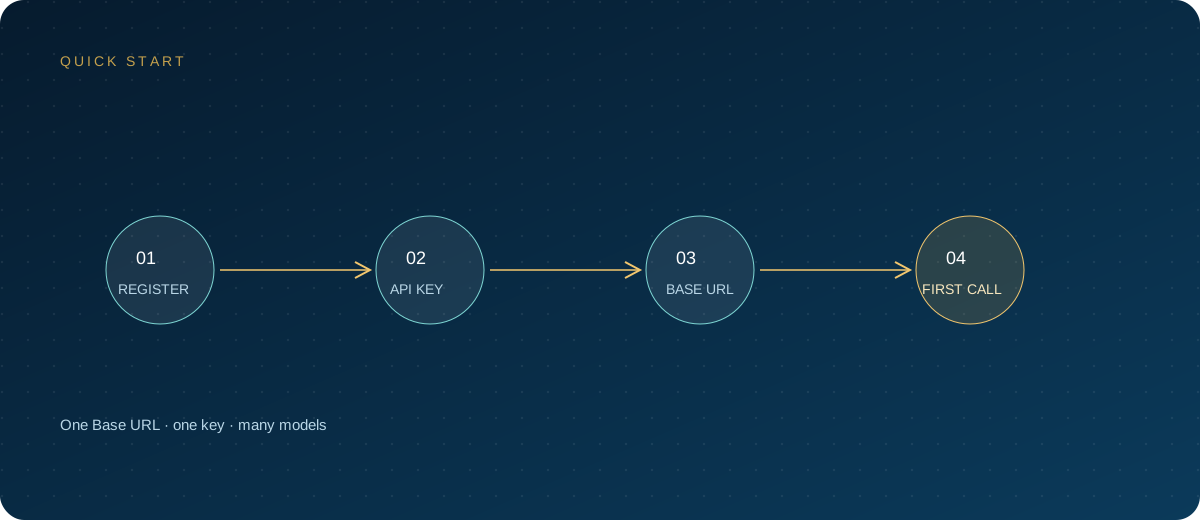
Create the key after registering with the ZSQH AI Gateway. Name keys by device and purpose, for example chatbox-mac-work. The Base URL is the gateway's OpenAI-compatible address. Copy the model ID from the model pricing page, and mind capitalization, version suffixes, and hyphens.
Note the three values somewhere temporary first; decide whether to save them after configuration succeeds. Never put the key in public documents or chat logs.
3. Add an OpenAI-compatible provider
Button labels vary between versions, but the sequence is essentially the same:
- Open Chatbox and go to Settings.
- Find "Model Provider" or "Model Service."
- Click "Add" or "+" to create a provider.
- Give it a recognizable name such as "ZSQH."
- Choose OpenAI-compatible as the API mode, not Anthropic or Gemini mode.
- Enter the API key and Base URL.
- Click "Fetch" to pull the model list; if that fails, add model IDs manually.
- Click "Check" to test the connection, then select the model you just added.
One provider can hold several models. Keeping chat, vision, and reasoning models under the same provider makes switching less error-prone. If you have both a test and a production environment, create two providers and distinguish them with a prefix.
4. How to fill in Base URL and model ID
Base URL is the easiest field to get wrong. It should end at /v1, and the client appends the rest of the endpoint path itself. If you also include /chat/completions, the client may append it again, and the result is a 404.
A simple decision rule, in two lines:
- For
401, check the key first: expired, deleted, or surrounded by spaces. - For
404, check the path first: try adding or removing/v1, changing one variable at a time.
Model IDs must match the API identifier on the pricing page exactly. Display names usually look nicer, but they cannot be used in requests. For models with dates, version numbers, or suffixes such as -mini, check every character.
5. Verify: curl first, then the client
Validate the gateway side in a terminal first; this rules out half of all problems:
export ZSQH_API_KEY="sk-your-key"

curl "https://ai.zhongshangqihang.com/v1/chat/completions" \
  -H "Authorization: Bearer $ZSQH_API_KEY" \
  -H "Content-Type: application/json" \
  -d '{
    "model": "your-model-id",
    "messages": [{"role": "user", "content": "Reply with OK only"}]
  }'
If the returned JSON contains choices, the key, address, and model are all valid. Then go back to the client for three checks:
- Send a short question and confirm the first token returns normally.
- Ask two follow-up questions and confirm context is not lost.
- Ask for a long answer and confirm it does not cut off midway.
If only long answers cut off, check the network and streaming output first; if every request fails, return to the key and Base URL. A passing "Check" in the client means basic connectivity only, not that every capability works.
6. Settings and sync: desktop and mobile together
Chatbox settings usually include the default model, temperature, context length, proxy, and data directory. Change three first: default model, streaming on or off, and data storage location. Leave the rest at defaults until things work.
| Scenario | Recommended practice | Note |
|---|---|---|
| Daily desktop use | Save the provider configuration and fix a default model | Export conversation backups regularly |
| Occasional mobile questions | Configure a separate provider with fewer models | Do not store keys long-term on a shared phone |
| Switching computers | Re-enter the key and model IDs | Do not copy the whole configuration directory |
| Shared device | Use separate system accounts | Avoid exposing conversations and keys to each other |
Whether account-based cloud sync is supported, and what it includes, depends on the current version and sign-in method; check the in-app data settings page. Do not assume "chat history syncs, so the key syncs too." In most cases the key is local configuration and must be re-entered on a new device; exported backup files may also contain sensitive data and should be handled like key files.
7. Team use: treat configuration as infrastructure
For small teams, the easiest thing to overlook is not the integration but the handover. At a minimum:
- Issue a key per person instead of sharing one key across the team.
- Standardize provider names, for example with a
ZSQH-prefix. - Set budget or usage alerts on the gateway to avoid idle consumption.
- When a member leaves or a device is lost, revoke the key before handling other accounts.
- Document the Base URL, model IDs, and client version internally.
The value is not "more standardized management" but faster diagnosis when something breaks: is one person's key invalid, has a model gone offline, or are client versions inconsistent?
8. FAQ
Can I use Chatbox without an API key?
You can use the built-in Chatbox AI service; its limits and charges depend on the current version. Bring-your-own-key mode uses the API provider you configured, and fees are calculated by that provider on a pay-as-you-go basis. Do not confuse the two.
Should the Base URL include /v1?
Most OpenAI-compatible configurations need /v1. If both versions return errors, use curl to find the full address that returns a result, then enter that in the client; do not guess.
Does a failed "Fetch model list" mean the key is broken?
Not necessarily. The gateway may not expose a model-list endpoint, or the path may be wrong. Add one model ID manually first, then verify with "Check" or a real conversation. If the manual model works, only the list endpoint is unsupported.
Desktop works but mobile cannot connect. Why?
First confirm both use the same Base URL and model ID, then check whether the mobile network blocks the request. Mobile entry points and available features may differ from desktop; follow the current version. Do not store a high-privilege key on a phone long-term.
Is the configuration still there after switching computers?
Whether chat history and configuration survive depends on whether you signed in, used sync, and exported a backup. Re-enter the key; revoke the old device's key once you confirm it is no longer needed.
Next steps
Connecting Chatbox to a custom API comes down to three steps: install the right version, enter the right Base URL, and choose the right model ID. Verify with curl first, then configure the client; when errors appear, check the key for 401, the path for 404, and the ID for model not found. For a unified endpoint and usage management, sign up for the ZSQH AI Gateway; models and pricing follow the model pricing page.
Related reading: