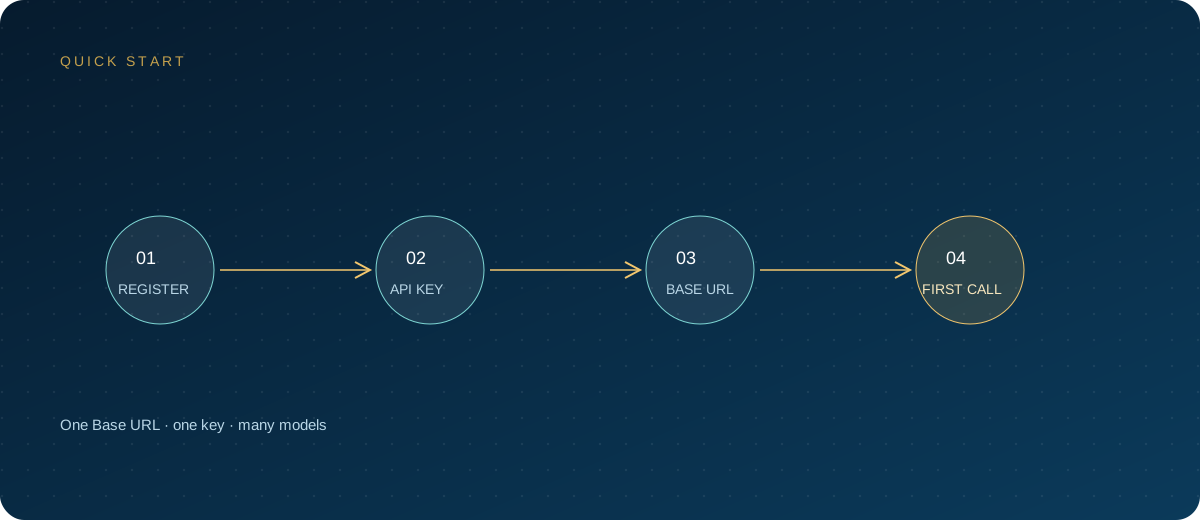
Cherry Studio puts multiple model providers into one desktop client, which is convenient, but key management is easily overlooked: who created a key, which models it can use, where it is stored, whether a backup carries it away, and whether it is still in use after someone leaves. This article gives an executable approach in the order of creation, configuration, storage, sync, rotation, permissions, and troubleshooting.
Note: Cherry Studio is a trademark of CherryHQ. This article is for technical discussion only and has no affiliation or partnership with CherryHQ. Interface names, storage methods, and feature entry points may change between versions; refer to the current client version and official documentation. Models and pricing follow the site's model pricing page.
1. First distinguish three types of "Cherry Studio key"
The term is often used loosely:
- Client or enterprise platform credentials: used for sign-in, enterprise management, or vendor-owned services; permissions and billing are decided by the vendor.
- Model provider keys: issued by OpenAI, Anthropic, Google, and others, and entered into the corresponding provider fields.
- Gateway keys: issued by OpenAI-compatible services such as the ZSQH AI Gateway; one key can call models from multiple vendors.
This article covers the third type. It is not used to sign in to Cherry Studio and cannot call the client vendor's endpoints. When configuring, choose "custom provider" or an OpenAI-compatible entry rather than putting a gateway key into a vendor-specific field.
2. Create a key: define purpose and limits first
Do not create a key first and then think about who will use it; reversing the order saves a lot of work:
- Open the ZSQH AI Gateway sign-up page, register, and sign in to the console.
- Go to the API keys page and create a new key.
- Name it clearly with the user, device, and purpose, such as
cherry-laptop-daily, nottest. - Set a quota cap and expiration time; if the console supports model scopes, limit the models available to the project.
- Confirm the account balance so you do not discover the problem only after configuration is complete.
- Copy the key into a password manager; do not send it to group chats, documents, or tickets first.
After creation, confirm with the command line that the key, address, and model work together before entering the client:
export ZSQH_API_KEY="sk-your-key"

curl "https://ai.zhongshangqihang.com/v1/chat/completions" \
  -H "Authorization: Bearer $ZSQH_API_KEY" \
  -H "Content-Type: application/json" \
  -d '{"model":"your-model-id","messages":[{"role":"user","content":"Reply with OK only"}]}'
If choices appears in the response, the request path is working. For 401, check the key first; for 404, check the /v1 path first; for a model-not-found error, verify the model ID first.
3. Configure provider and models in the client
The entry in Cherry Studio is usually "Settings → Model Services." Button names differ slightly between versions, but the fields are basically the same:
| Setting | Recommended value | Notes |
|---|---|---|
| Provider type | Custom / OpenAI compatible | Do not choose a vendor-specific protocol |
| API key | sk-... |
Gateway key created in the console |
| API address | https://ai.zhongshangqihang.com/v1 |
No trailing slash |
| Model | Fetch from the list or add manually | ID must match the pricing page |
After saving, click "Fetch Model List" or add model IDs manually. Model IDs are case-sensitive and include version suffixes; label types by use such as chat, embedding, and vision; specific options depend on the current version. When configuration is complete, use "Check" or send "Reply with OK only" to verify.
4. How to divide work across multiple models
Using multiple models is not about filling the list; it is about letting each assistant do one class of work:
- Everyday Q&A: choose a fast general model with controllable cost.
- Long documents and contracts: choose a long-context model and create a separate assistant so it does not mix with daily conversations.
- Code and structured output: choose a model with stable coding ability and confirm it supports the parameters you need.
- Knowledge base: configure an embedding model separately; add a reranking model when reranking is needed.
- Sensitive content: prefer local models, or define data-processing boundaries first.
Write a clear system prompt for each assistant to reduce repeated explanations. The more models you use, the more you should avoid pasting entire documents into conversations repeatedly; put what can be indexed into the knowledge base first.
5. Where keys are stored, and backup and sync considerations
Cherry Studio stores provider configuration and keys in local application data. The official documentation does not promise that local storage is always encrypted, so treat it as sensitive: enable disk encryption, set a screen-lock password, and do not place the application data directory in public cloud drives or code repositories.
For backup, the official documentation lists WebDAV, S3-compatible storage, and local directories. A full backup includes chats, assistants, knowledge bases, attachments, and provider configuration, and API keys are included as well; a slim backup is smaller but cannot fully restore the knowledge base. The official documentation does not describe real-time multi-device sync; the common approach is to back up on computer A and restore on computer B.
Therefore:
- Manage backup files like key files: do not share them or put them on untrusted shared drives.
- Create separate keys for each device; do not copy one key to every machine.
- Make a full backup before migration, and check providers, models, and knowledge bases item by item after restoring.
- Use separate system accounts when a computer is shared, so configurations do not overwrite each other.
6. Rotation and revocation
Rotate every 90 days, or immediately when a member leaves, a device is lost, or a leak is suspected. Rotate in the order "create new, switch, then disable"; do not delete the old key directly.
- Create a new key with the same permissions and add a date suffix to the name.
- Replace the API key in Cherry Studio and check every provider entry.
- Send a test request and confirm that the new key appears in the gateway logs.
- Watch the error rate and usage to confirm no script or device was missed.
- Disable the old key and keep it for a period before deleting it.
Cherry Studio supports configuring multiple keys per provider and rotating between them, which helps spread rate-limit pressure; this does not mean keys can be shared, and billing and ownership must still be kept clear.
7. Least privilege and team policy
- One key per person, one key per purpose; create separate keys for automation tasks.
- Set quota caps, expiration times, and model scopes whenever possible; at minimum set the first two.
- Connect through a unified gateway to retain member, model, and usage logs for reconciliation.
- Maintain a register: record only key names, holders, purposes, creation and expiration dates, never the full key.
- Check monthly for long-unused keys, over-quota keys, and abnormal authentication failures.
- Include key creation, handover, and disabling in onboarding and offboarding processes.
- Define which data may enter cloud models; evaluate sensitive projects before use.
- Review model pricing regularly, as prices and available models change.
8. Troubleshooting
- 401 / Invalid API Key: wrong key, disabled key, or spaces and line breaks pasted along with it.
- 403: quota exhausted, insufficient permission, or model outside the allowed scope.
- 404: wrong API address path; check whether
/v1is duplicated or missing. - 429: rate limit triggered or quota cap reached; check console usage.
- Timeout or broken stream: check the proxy, firewall, and streaming settings.
- Knowledge base errors: embedding model not configured, or the gateway does not provide the corresponding embedding endpoint.
- Unusable after restoring a backup: confirm provider configuration was restored, then re-enter or verify the key.
- Still failing after changing the key: confirm the save succeeded and check the gateway logs to see whether the request arrived.
FAQ
Where is the Cherry Studio API key stored, and is it safe?
It is stored in local application data, and the exact path varies by system and version. The official documentation does not promise encryption, and a full backup also contains keys. Protect it as a sensitive file, enable disk encryption, and avoid syncing it to public locations.
Can one key be used for multiple models?
Usually yes, as long as the gateway allows that key to call those models. Whether model scope can be restricted depends on console capabilities; when it cannot be restricted, control impact with quota caps, expiration times, and logs.
Will enabling WebDAV backup upload the key?
The official documentation states that a full backup includes provider configuration and API keys. Choose a trusted storage location, enable transport encryption, and do not share backup files; if keys are a concern, evaluate a slim backup or remove keys before backing up.
How do I migrate configuration and keys to a new computer?
Make a full backup, upload it to WebDAV or S3, and restore on the new device; you can also migrate the local backup directory. After restoring, check providers, models, knowledge bases, and default model settings, and create a separate key for the new device.
What should I do first after a key leak?
Disable or delete the key first to stop the loss, then check abnormal usage, call sources, and time ranges. After that, check backups, repositories, chat history, and screenshots, and rotate other credentials in the same environment if necessary.
Summary
Cherry Studio key configuration is not complicated; the hard part is long-term management: traceable names, capped quotas, protected storage, bounded backups, and the ability to stop a leak. You can sign up for the ZSQH AI Gateway, create a client-specific key, and tighten the team policy after it works; review costs regularly against model pricing.
Related reading: