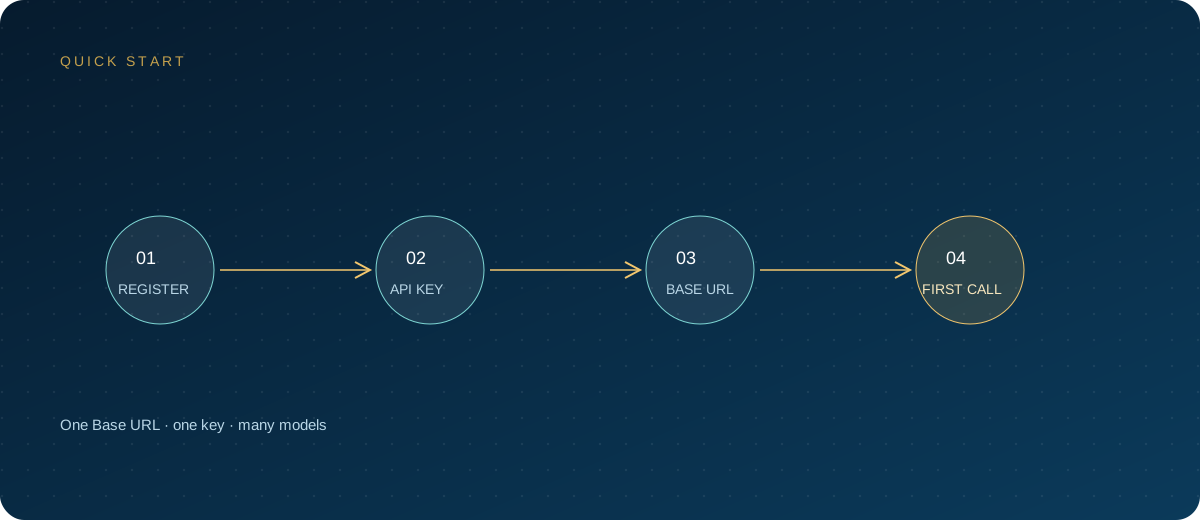
Cherry Studio is a common desktop AI client that supports Windows, macOS, and Linux. It does not provide models itself; models come from the API provider you configure. Beyond built-in providers, it can also add OpenAI-compatible custom endpoints, which is practical for teams using a unified gateway: one Base URL and one key let you switch between multiple models.
This article follows common versions in 2026, covering installation through providers, models, assistants, knowledge bases, and team use. Interface names change between versions; use your current version as the reference.
Note: Cherry Studio is a product and trademark of its respective owner; OpenAI is a trademark of OpenAI, Inc. This article is a technical integration guide only and has no affiliation or partnership with these companies. Model availability, API scope, and pricing are subject to the site's model pricing page.
1. Installation: prefer official channels
Cherry Studio provides desktop installers; common download sources are the official website and the project's GitHub Releases. Choose the package for your system:
- Windows: download the installer and follow the prompts to complete installation.
- macOS: download the dmg and drag it into the Applications folder; if the system blocks the first launch, follow the system prompt to allow it.
- Linux: install the AppImage or distribution package provided by the project.
Avoid "green" or repackaged builds from unknown sources. The desktop client stores API keys and chat history, so installers of uncertain origin carry high risk. After installation, open "About" in Settings to confirm the version, then decide whether to upgrade; older versions may have different button names and field placements.
2. Prepare three parameters
A custom provider needs only three things, but each is easy to misconfigure:
| Setting | Recommended value | Notes |
|---|---|---|
| Provider type | OpenAI | Uses the OpenAI-compatible protocol |
| API address | https://ai.zhongshangqihang.com/v1 |
Fill up to /v1, not the full endpoint path |
| API key | sk-... |
Create in the gateway console, named by project |
| Model ID | API identifier on the pricing page | Not the display name on the website |
Create the key in the console after signing up for the ZSQH AI Gateway. Use one key per project to make usage, limits, and revocation easier. Copy model IDs from the model pricing page and mind capitalization, hyphens, and version suffixes.
3. Add a custom provider
Using a common current version as an example, the sequence is:
- Open Cherry Studio and click the gear icon in the lower-left corner to enter Settings.
- Select "Model Services."
- Click "+ Add Provider" below the provider list.
- In "Add Custom Provider," enter a provider name, for example "ZSQH Gateway."
- Enter the "API Key."
- Under "Endpoint Settings," choose OpenAI; if the gateway offers the Responses protocol, you can also choose OpenAI Responses under "More Settings."
- Enter the API address, for example
https://ai.zhongshangqihang.com/v1. - Click "Add" to save.
If your version has no "+ Add Provider," upgrade the client first. Versions differ in what they call endpoint types, but the core fields stay the same: name, key, and address. Image generation and image editing have separate Base URL options; do not mix them with the chat model address.
4. Add models and check connectivity
After saving the provider, return to that provider's model list. There are two ways to add models:
- Fetch the model list: the client requests available models from the gateway; once it succeeds, check the models you need.
- Add manually: click "+" and enter the model ID directly. Use this when the gateway does not expose a list endpoint or when fetching fails.
The model ID must match the pricing page exactly. After adding manually, also confirm the model type is "chat" or "conversation"; with the wrong type, the model will not appear in the chat interface's selector. Embedding models and image models must be added separately according to their use.
The "Check" button in the interface mainly verifies that the API key works; it does not mean every model is available to you. After saving, create a new conversation, select the model you just added, and send "Reply with OK only" — that is the complete verification.
5. Verify with curl first, then return to the client
When configuration gets stuck, use a minimal request to distinguish whether the problem is the gateway or the client:
export ZSQH_API_KEY="sk-your-key"

curl -sS "https://ai.zhongshangqihang.com/v1/chat/completions" \
  -H "Authorization: Bearer $ZSQH_API_KEY" \
  -H "Content-Type: application/json" \
  -d '{
    "model": "your-model-id",
    "messages": [{"role": "user", "content": "Reply with OK only"}]
  }'
If the response contains choices, the address, key, and model are at least working, and the problem is likely in client fields or a network proxy. For 401, check the key and stray spaces first; for 404, check /v1 and the model ID first; for 429, check usage and concurrency first. Change only one variable at a time; avoid switching key, address, and model all at once.
6. Assistants: assign models to specific tasks
Cherry Studio's "Assistants" can save system prompts, models, and parameters, which is suitable for fixing repetitive work. A practical division of labor:
- Use a fast, cost-controllable general model for everyday Q&A.
- Create a separate assistant for long-document summarization with a long-context model, and constrain the output structure in the prompt.
- Use a model with stronger coding ability for code tasks, and explicitly require reading files before editing.
- Create separate assistants for translation and polishing, and put terminology and style requirements into the system prompt.
- Let each assistant solve only one class of problem, avoiding ever-longer prompts.
You can also set a default model in Settings to reduce the cost of choosing one for every new conversation. The more models you use, the more you need to control context: put material that belongs in the knowledge base into it first, and summarize when a summary is enough rather than pasting an entire document repeatedly.
7. Knowledge base: an embedding model is not mandatory
The knowledge base entry is on the left side. Click "New," enter a name that describes the scope of the material, and then choose an embedding model. Current versions offer three options:
- None: keyword-only BM25 retrieval, with no extra configuration; suitable for validating the workflow first.
- Cloud embedding model: requires a working embedding model service; retrieval combines keywords and vectors.
- Local embedding model: download the embedding model under "Settings → Local Models" first, then select it in the knowledge base.
Embedding calls go through the gateway, so confirm that the gateway provides an embedding endpoint and the corresponding model; otherwise choose "None" or local embedding. After creation, click "Add Material," import one or two files with clear answers first, and test questions after processing completes.
Changing the embedding model may trigger a "rebuild knowledge base." Confirm the new model works before rebuilding, and do not change the model and chunk settings at the same time, or you will not know which change caused the difference.
8. Troubleshooting order for common failures
| Symptom | Common cause | Action |
|---|---|---|
401 authentication error |
Wrong key, spaces, or not saved | Paste again and confirm the key belongs to the current gateway |
404 Not Found |
/v1 added or missing in the API address |
Keep only up to /v1, not the full path |
model not found |
Wrong model ID or not enabled | Copy the exact identifier from the pricing page |
| Model list fetch fails | Gateway does not expose a list endpoint | Add the model ID manually |
| Poor knowledge base results | Chunking, retrieval method, or material quality | Test with a small data set first, then adjust chunking |
| Conversation stream breaks midway | Proxy, firewall, or network fluctuation | Turn off streaming to test, and check proxy and timeouts |
Corporate networks or proxy software may block SSE streaming responses, which appears as "requests go out but nothing comes back." Temporarily turn off streaming output; if non-streaming works, focus on the proxy and firewall rather than repeatedly changing models.
9. Team use: share conventions, not keys
Cherry Studio is a desktop client, and its public documentation does not list multi-user permission management as a core capability. Team use is more like "a unified configuration standard plus each person's local client." Recommendations:
- Each person uses their own gateway key, named by person; revoke individually on departure or suspected leak.
- Monitor usage and limits on the gateway side, and split costs by project.
- Organize system prompts for common assistants into text templates and distribute them uniformly.
- Keep knowledge base material in a shared location the team controls, avoiding separate versions maintained by each person.
- Back up to WebDAV or S3-compatible storage, but know that the backup contains provider configuration and API keys.
- Do not send backup files to group chats or place them on untrusted shared drives.
- Do not save long-lived keys on public computers, and do not paste customer privacy or unmasked contracts into conversations.
If a team needs unified auditing, quotas, and permissions, the focus should be on the gateway side.
FAQ
Is Cherry Studio free?
The client itself can be used free of charge, but model usage fees are charged by the API provider you configure. Specifics depend on the current client version and the gateway pricing page.
Should the Base URL include /v1?
Most OpenAI-compatible configurations need /v1; fill in https://ai.zhongshangqihang.com/v1. Do not enter /v1/chat/completions; the client appends the endpoint path itself.
What if fetching the model list fails?
First confirm whether the gateway exposes a model-list endpoint. If it does not or the request fails, click "+" and enter the model ID manually; the result is the same. Model IDs follow the API identifier on the pricing page.
Does the knowledge base require an embedding model?
No. Current versions can select "None" and use BM25 keyword retrieval for basic Q&A. Configure cloud or local embedding when you need vector retrieval, and confirm the corresponding service is callable.
Can a team share one key?
Not recommended. A shared key cannot separate usage, and one leak affects the whole group. Issue keys by person, project, or environment, combined with gateway limits and usage reports for better control.
Next steps
Connecting Cherry Studio is not complicated; the hard part is aligning the Base URL, key, and model ID. Get curl working first, then move to the client; when problems appear, troubleshoot in the order of 401, 404, and model not found. If you need a unified model entry point and usage management, sign up for the ZSQH AI Gateway; models and pricing follow the model pricing page.
Related reading: