When you configure a custom model in Cursor, the key is both your pass and the boundary of cost and security. Careless key creation commonly leads to unexpected quota consumption, unclear per-member usage, and old keys that remain active after someone leaves.
This article follows the sequence "create, bind, map, verify, rotate, prevent leaks, team policy" and provides an actionable checklist. Interface names change between versions, so use the Cursor Settings in your installation as the source of truth.
Note: Cursor is a trademark of Anysphere, Inc. This article is for technical explanation only and implies no affiliation with or agency for Cursor/Anysphere. Product features and billing rules are governed by Cursor's official pages.
1. Decide which kind of key you are configuring
"Cursor API Key" is often used for three different things:
- Cursor platform API key: used for Cursor's own Cloud Agents, management endpoints, and similar services, created in your Cursor account.
- Model provider key: a key issued by OpenAI, Anthropic, Google, Azure, AWS Bedrock, or another provider, entered in Cursor's API Keys area.
- Gateway key: issued by a compatible service such as the ZSQH AI Gateway, usually starting with
sk-, and calling multiple models through the OpenAI-compatible protocol.
This article covers the third kind in Cursor. It is not used to sign in to Cursor and cannot call Cursor platform endpoints. A gateway key should be entered under OpenAI API Key with a Base URL override; putting it into the Anthropic or Google fields usually does not work.
2. Creating a key: define boundaries before copying
Before creating a key, decide three things: who will use it, which project it serves, and the maximum spend allowed. Thinking this through first makes later management much easier.
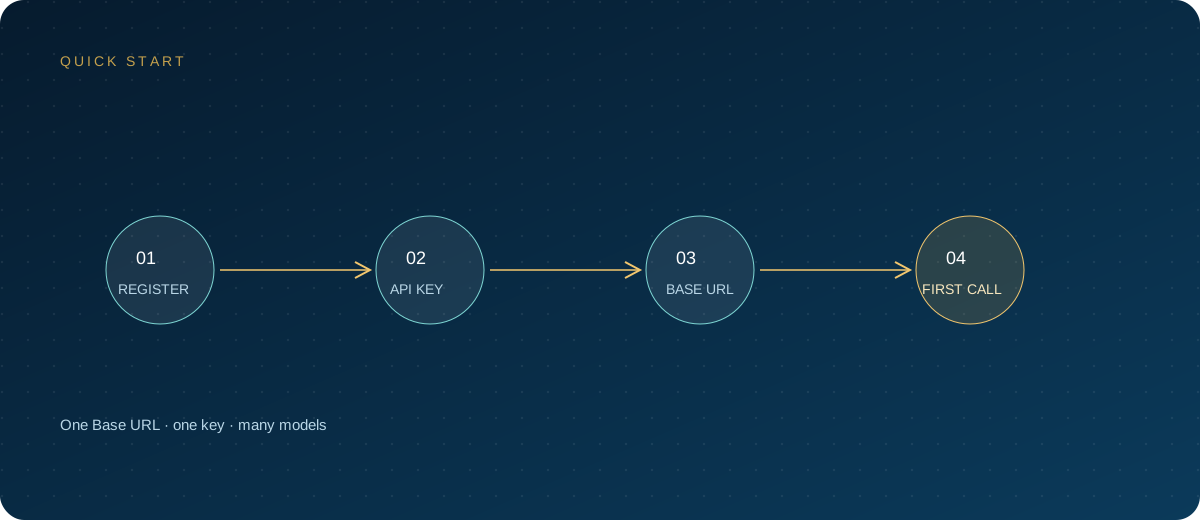
- Open the ZSQH AI Gateway sign-up page and sign in to the console.
- Go to "API Keys" and create a new key.
- Include the user and device in the name, for example
cursor-zhang-macbook; do not just writetest. - Set a spending limit and an expiration time; if the console supports model scopes, limit available models by project.
- Top up and confirm the balance, so you do not discover a problem only after configuration.
- Copy the key into a password manager; do not send it to chat tools or tickets first.
Record it in the password manager in a format like the following, to simplify rotation and handover:
Purpose: cursor-work-laptop
Base URL: https://ai.zhongshangqihang.com/v1
Key: sk-... (store only in a password manager)
Model: the model ID currently shown on the model pricing page
A key is usually displayed in full only once. If it is lost, create a new one and delete the old key; do not try to recover it. Models and prices change, so refer to the model pricing page.
3. Binding the key in Cursor
The usual path is Cursor Settings → Models → API Keys. Pay attention to the save state at each step.
- Open Cursor Settings. The shortcut is usually
Cmd/Ctrl + ,. - Go to Models and expand API Keys.
- Turn on OpenAI API Key, paste the key, and click Save.
- Turn on Override OpenAI Base URL and enter
https://ai.zhongshangqihang.com/v1. - Click + Add Custom Model (some versions label it + Add model), enter the exact model ID, and enable it.
- Select the model in a chat and send a short test request.
Three common mistakes:
- Setting the Base URL to the website address
https://ai.zhongshangqihang.comwithout/v1. - Setting the Base URL through
/chat/completions, causing a duplicated path and a 404. - Entering a gateway key in the Azure OpenAI or Bedrock field. Those fields expect their own cloud authentication and do not apply to a standard compatible gateway.
If the current version has no Override OpenAI Base URL, it does not support a custom compatible address. Do not try to work around it through other fields; upgrade or use a version that provides the switch.
4. Model mapping: turn names into a maintainable table
Model names are routing identifiers, not display copy. Teams should maintain a mapping table containing at least the use case, the model ID entered in Cursor, the corresponding gateway model, the capability boundary, and the retirement date.
| Use case | What to enter in Cursor | Gateway reference | Verification focus |
|---|---|---|---|
| Everyday Q&A | Lightweight model ID | Same-name model on the pricing page | Names match exactly |
| Primary coding | Primary model ID | Same-name model on the pricing page | Tool calling supported |
| Long-context tasks | Long-context variant | Same-name model on the pricing page | Context limit |
| Failure fallback | Fallback model ID | Same-name model on the pricing page | Manual switch works |
Do not substitute display names for model IDs, and do not guess version suffixes. A mistake commonly appears as a missing model, a 404, or a rejected request. When the gateway changes models, update Cursor and the internal documentation together.
5. Verification: configuration, request, and billing layers
Do not judge by whether a reply appears, because the reply may come from the built-in channel. Checking three layers is more reliable.
- Configuration layer: confirm the key is saved, the Base URL ends in
/v1, and the custom model is enabled. - Request layer: start a new empty chat, explicitly select the custom model, and send a short request.
- Billing layer: open the gateway console's usage or request log and confirm a record with the matching time, model, and key. If there is no record, the request never reached the gateway.
Common error mapping:
- 401 or 403: wrong key, disabled key, or exhausted quota.
- 404: wrong Base URL path or a nonexistent model name.
- 429: rate limiting or the spending limit has been reached.
- Timeout: unreachable endpoint or a network path problem.
- Normal chat works but Agent fails: possibly an API capability mismatch, not necessarily a key problem.
For testing, create a separate low-limit key and switch to the production key after verification, so the production key is not pasted into different windows repeatedly.
6. Rotation, revocation, and incident handling
Rotate keys on a fixed schedule, for example every 90 days, or immediately after a member change or device replacement. Rotation is not delete-and-recreate; run keys in parallel first, then switch.
- Create a new key with the same permissions, adding a date suffix to the name.
- Replace the key in Cursor and save.
- Send a test request and confirm the new key appears in the gateway log.
- Watch error rates and usage for a period to catch any missed clients.
- Disable the old key and keep it for a while before deleting it.
If exposure is suspected, reverse the order: disable or delete the key first, then investigate abnormal usage, source, and time window. After that, notify the team, check repositories and logs, and rotate other related credentials if necessary. When someone leaves or changes machines, disable the corresponding key that day rather than waiting for the next audit.
7. Leak prevention: where keys escape
- Code and configuration files:
.env, container configuration, and notebooks can all be committed. Use a secrets manager and scan before committing. - Screenshots and screen recordings: settings pages show the full key. Mask it before taking screenshots, and do not open key fields during demos.
- Chats and tickets: never send a complete key to colleagues or support. If identification is needed, provide only the name or the last four characters.
- IDE settings sync and extensions: confirm the sync scope and extension permissions; company devices should have an explicit extension allowlist.
- Shared computers: use a separate system account, do not enable long-term storage, and sign out when finished.
- Logs and error reporting: debug logs may contain request headers. Remove authentication information before reporting.
- Transport path: according to Cursor's help pages, keys are sent encrypted with requests to Cursor's servers and are not retained; however, BYOK does not necessarily receive zero-data-retention treatment. Use a dedicated key with limited quota.
8. Team policy: make keys manageable
- One key per person; create separate keys for shared services and never mix them with personal keys.
- Set uniform spending limits, expiration times, and model allowlists.
- Connect through a unified gateway where possible, retaining member, model, and usage logs.
- Review monthly: long-unused keys, over-limit keys, and abnormal increases in failed authentication.
- Define data tiers: sensitive repositories may use only assessed models and channels.
- Include key creation, handover, and disabling in onboarding and offboarding checklists.
- Team plans may charge platform fees even with BYOK; base cost estimates on Cursor's billing page and model pricing.
9. Troubleshooting checklist
- Key pasted with spaces or line breaks: delete it and copy it again in full.
- Base URL includes
/chat/completions: keep only through/v1. - Model name missing a version suffix: copy it verbatim from the pricing page.
- Key quota exhausted: check balance and limits in the console and adjust the cap if needed.
- Plan restriction: confirm whether the current Cursor plan allows BYOK and related features.
- Endpoint unreachable: confirm the Base URL is public and test with a simple request outside the browser.
- Agent fails but normal chat works: suspect an API capability mismatch first, rather than an invalid key.
- Tab completion does not use the key: per Cursor's documentation, completion uses built-in models; this is expected behavior.
10. FAQ
What is the difference between a Cursor API key and a model API key?
The former usually refers to a key issued by the Cursor platform for Cursor's own endpoints; the latter is issued by a model provider or gateway for calling models. This article configures the latter. The two cannot be used interchangeably.
Can one key be restricted to a single model?
It depends on whether the gateway console provides model scopes or permission settings. If not, at minimum use a dedicated key with a spending cap to contain the impact, and verify the actual model through logs.
Does rotating a key interrupt an ongoing conversation?
Requests already sent may not be affected, but subsequent requests will use the new key. Switch during off-peak hours, send a test request immediately after switching, and then disable the old key.
What should I do first after a key leaks?
Disable or delete the key first, then investigate abnormal usage and call sources. Do not spend time confirming the leak path first; containing the damage takes priority. Afterward, check repositories, logs, and chat records, and rotate other credentials if needed.
Is the free quota enough for testing?
Refer to the current console promotion and model pricing. For testing, use a low-limit key to verify connectivity and the model name only; do not use production traffic for experiments.
Summary
Configuring a key in Cursor is not complicated; the hard part is long-term management: traceable names, capped spending, mapped models, and damage control after a leak. First register for the ZSQH AI Gateway, create a key dedicated to Cursor, and after it works, tighten permissions step by step under your team policy.
Related reading: