Cursor is a widely used AI code editor. Beyond its built-in model quota, it also lets you enter your own API Key and Base URL. For teams, connecting Cursor to a unified OpenAI-compatible gateway provides a fixed access path, consolidated billing, and the freedom to switch between models.
This guide follows the actual order of operations: preparation, configuration, verification, limits, and team rollout. Menu names may differ between releases, so use the Cursor Settings in your installed version as the source of truth.
Note: Cursor is a trademark of Anysphere, Inc. This article is for technical explanation only and implies no affiliation with or agency for Cursor/Anysphere. The interface, plans, and billing rules are governed by Cursor's official pages.
1. Distinguish the two kinds of "Cursor API"
The first is the API that the Cursor platform itself exposes, such as Cloud Agents and management endpoints. Those keys are created in your Cursor account and call Cursor's own services. The second is "bring your own key" (BYOK): you enter a model provider's key in Cursor so the editor calls models through your account. This article covers the second.
One prerequisite is easy to miss: Cursor forwards model requests through its servers rather than connecting directly from your machine. The Base URL must therefore be publicly reachable. A gateway available only on the corporate intranet will usually time out on Cursor's side. The ZSQH AI Gateway is a public service, so this restriction generally does not apply.
2. Prepare a key, Base URL, and model name
Before you start, have three things ready: an API key, a compatible address, and an exact model ID.
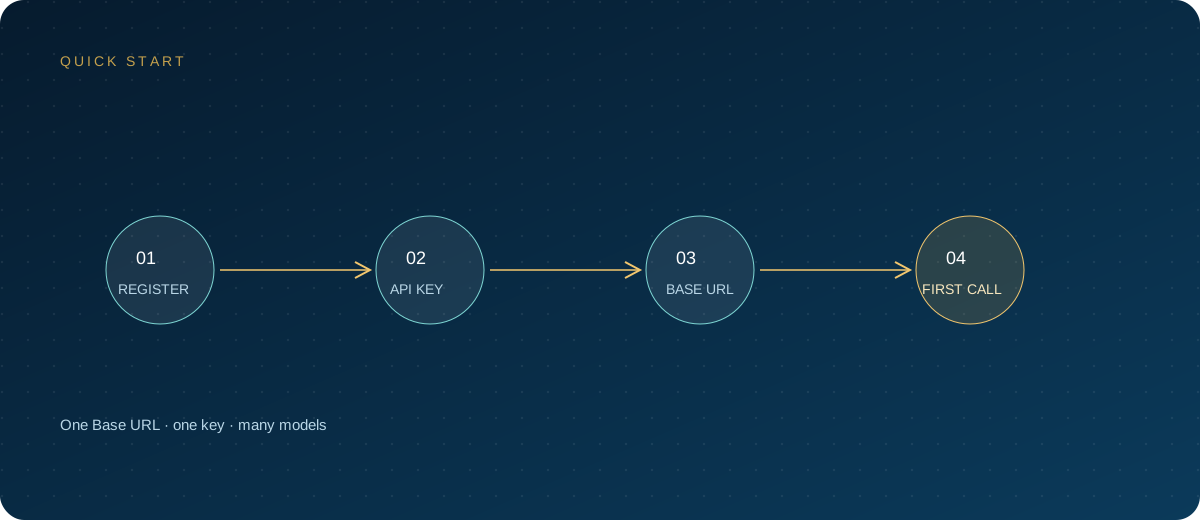
- Open the ZSQH AI Gateway sign-up page, register, and sign in to the console.
- Go to "API Keys", create a key, and name it for its purpose, for example
cursor-work-laptop. - Set a spending limit and an expiration time. Do this for personal accounts as well, to prevent unexpected consumption.
- Copy the key and store it in a password manager. The console usually shows it in full only once.
- Open model pricing and note the model ID you intend to use. Prices and available models change, so rely on what the page currently shows.
The three settings look like this:
Base URL: https://ai.zhongshangqihang.com/v1
API Key:  sk-... (created in the console; store only in a password manager)
Model:    the model ID currently shown on the model pricing page
The Base URL is the OpenAI-compatible address ending in /v1. Do not enter Anthropic's root address, and do not append /chat/completions yourself; doing so often duplicates the path.
3. Enter the settings in Cursor
The usual path is Cursor Settings → Models → API Keys. Releases add or remove options, but the core steps are similar.
- Open Cursor Settings. The shortcut is usually
Cmd/Ctrl + ,. - Go to Models and expand the API Keys section.
- Turn on OpenAI API Key, paste the key you created, and click Save.
- Turn on Override OpenAI Base URL and enter
https://ai.zhongshangqihang.com/v1. - Click + Add Custom Model (some versions label it + Add model), enter the model ID from the pricing page, and enable the model.
- Select the model in the chat model picker and send a simple request.
If you cannot find Override OpenAI Base URL, the current version or plan does not support pointing OpenAI-compatible traffic at a custom address. Do not keep retrying; update the app or use an installation that exposes the switch.
The model name is a routing identifier, not a label. Case, hyphens, and version suffixes must match the gateway exactly. A mistake usually appears as a missing model, a 404, or a rejected request.
4. Choosing models
You can add several custom models in Cursor, but whether a request succeeds depends on the gateway offering a model with the same name and supporting the corresponding call pattern.
| Use case | Suggested tier | How to enter it | Notes |
|---|---|---|---|
| Everyday Q&A, small edits | Lightweight fast model | Copy the model ID from the pricing page | Low latency; limited capacity for complex refactors |
| Multi-file edits, Agent | Primary coding model | Copy the model ID from the pricing page | Must support tool calling |
| Architecture, difficult debugging | High-capability model | Copy the model ID from the pricing page | Higher cost; use as needed |
| Tab completion | Cursor's built-in model | Does not use the custom key | BYOK does not cover completion |
Agent mode may depend on the Responses API or tool calling. If the gateway supports only Chat Completions, some Agent features will fail. In that case, verify in a normal chat first, then determine whether the issue is the model or feature incompatibility.
Also, Auto, Composer, and Tab completion do not necessarily use your key. According to Cursor's help pages, Tab completion always uses the built-in model, and Auto mode may also be routed by Cursor. Treat custom models as a channel that takes effect only when explicitly selected; that matches how it works in practice.
5. Verify that the configuration works
A reply from Cursor is not enough, because it may come from the built-in channel. Verify in this order.
- Start a new empty chat to avoid interference from conversation history.
- Explicitly select the custom model in the picker; do not use Auto.
- Send a short request, such as asking it to explain a snippet under ten lines.
- Open the gateway console's usage or request log and confirm a record with the same time, model, and key.
- Record the result. If no log entry appears, the request never reached the gateway; go back and check the Base URL and the override switch.
Common errors map as follows:
- 401 or 403: wrong key, disabled key, or exhausted quota.
- 404: wrong Base URL path or a nonexistent model name.
- 429: rate limiting or the key's spending limit.
- Timeout: unreachable endpoint or a network path problem.
- Only Agent fails: likely an API capability mismatch, not necessarily the key.
6. Limits you must know
- BYOK mainly covers chat models; Tab completion still uses Cursor's built-in models.
- Versions differ in how much they support OpenAI keys. Cursor's help pages note that an OpenAI key covers only standard chat models without reasoning; reasoning models and some newer features may be unavailable.
- Requests are forwarded through Cursor's servers, so a custom endpoint must be publicly reachable.
- Requests with your own key do not necessarily receive Cursor's zero-data-retention policy; data handling depends on the model provider and gateway. Teams with strict data-retention requirements should assess this first.
- Team and Enterprise plans may still charge platform fees under Cursor's rules even when you bring your own key. Refer to Cursor's billing page.
- Cursor updates quickly, so menu names, supported models, and billing rules can change.
7. Team rollout steps
- Start with a small pilot: three to five developers, one primary model, one week.
- Track three metrics: request success rate, average latency, and daily spend per person.
- Create a separate key per person in the gateway, with per-person limits; do not use shared keys.
- Maintain a model mapping table: what to enter in Cursor, what it maps to on the gateway, and what to switch to on failure.
- Write the configuration into internal documentation, including the Base URL, model IDs, and common error handling.
- After observing costs, decide which members use their own key and which stay on plan quota. Prices follow model pricing.
- Disable the relevant key the same day someone leaves, changes machines, or finishes a project.
8. Security checklist
- One key per purpose; do not reuse keys across devices.
- Set spending limits and expiration times.
- Never put keys in code,
.envfiles, screenshots, or tickets. - Do not store keys long-term on shared computers.
- Rotate regularly; if exposure is suspected, disable the key first and investigate afterward.
- Route teams through the gateway and retain request logs for auditing.
- For sensitive repositories, first confirm whether data leaves the machine and which services it reaches.
9. FAQ
Does Cursor support any OpenAI-compatible endpoint?
Not necessarily. It depends on whether your Cursor version provides Override OpenAI Base URL and whether the endpoint is compatible with the paths and parameters Cursor actually calls. Verify in normal chat first, then try Agent features.
I entered my own key. Why does Cursor still ask for a subscription?
Bringing your own key does not unlock every feature. Some editor features, team management, and built-in models remain tied to the plan. Follow Cursor's current plan rules.
Why doesn't Tab completion consume my key?
According to Cursor's help pages, Tab completion always uses Cursor's built-in model and never goes through your own key. That is product design, not a configuration error.
Should the Base URL be the root address or /v1?
For the OpenAI-compatible protocol, enter the address through /v1. Do not include /chat/completions, or you risk duplicated paths and 404s.
Can a team share one key?
Technically yes, but it is not advisable. A shared key cannot separate usage by member, and it is hard to trace after a leak. One key per person, with limits and logs, is more reliable.
Next steps
First register for the ZSQH AI Gateway, create a key dedicated to Cursor, and enter the Base URL and model as described above. Once normal chat works, review model pricing to adjust your primary model and limits.
Related reading: