An OCR endpoint's key is essentially an identity credential, but OCR has its own usage patterns: batch processing invoices, ID documents, and scanned files, with tasks often running in the background. If a key leaks, someone else consumes your quota, and what leaks may be customer data. Many teams also take a test key straight into production.
This article follows the actual integration order: distinguish the key types first, then go through registration and creation, then permissions, quotas, environment variables, 401 troubleshooting, and the choice between direct vendor access and a gateway, and finally rotation and leak response.
Note: OpenAI, Google, Microsoft, Alibaba Cloud, Tencent Cloud, Baidu, and other brands mentioned in this article are trademarks of their respective owners. This article is for technical explanation only and has no affiliation with the vendors; interface, permission, and billing rules are subject to each platform's official documentation and on-site pages.
1. First, distinguish the three OCR authentication models
OCR keys have no universal standard. Before integrating, confirm which category the target platform uses; otherwise it is easy to hit "the key is correct but the request still returns 401":
- Bearer key: the most common model for OpenAI-compatible interfaces. The header is
Authorization: Bearer sk-..., and chat, vision, and OCR capabilities usually share one authentication scheme. - Access Key + Secret Key: used by some cloud providers. Requests must be signed according to the documentation, and the secret must never be written into front-end code or logs.
- API Key + Secret Key exchanged for a token: first call an authentication endpoint with the key and secret to obtain a short-lived access_token, then call OCR with that token and refresh it when it expires.
On the same platform, OCR may share one key with chat models. Whether a call succeeds depends on account permissions, model authorization, and balance, not on the key type. Before creating a key, check whether the console supports a model allowlist or sub-account permissions.
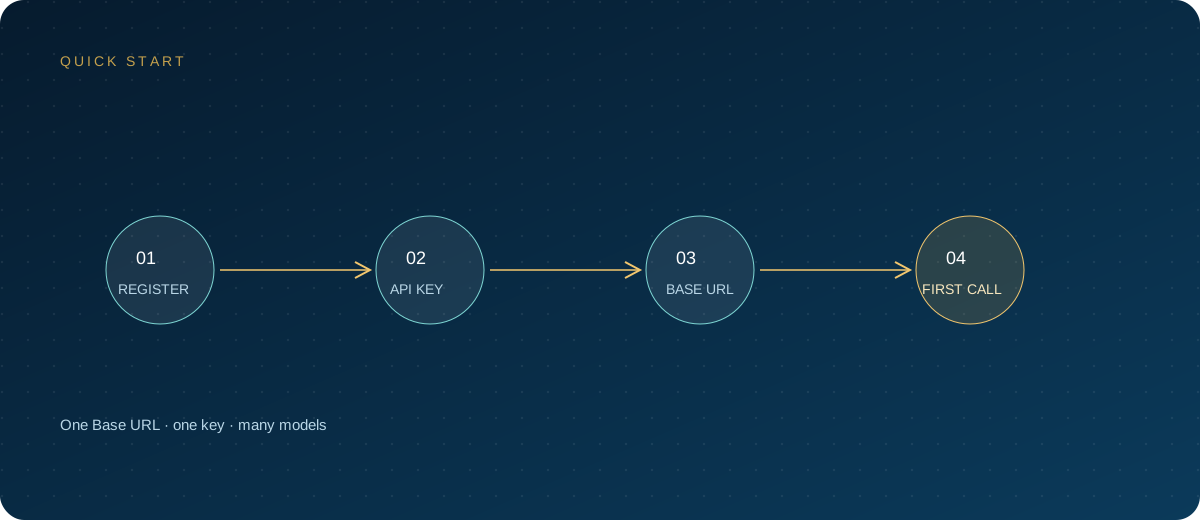
2. Steps to register and create a key
Using ZSQH AI Gateway as an example, the flow is:
- Open https://ai.zhongshangqihang.com or go directly to the sign-up page, register with an email address, and complete verification.
- After signing in, open the console and review existing keys on the "API Keys" page.
- Check the balance under "Wallet"; top up a small amount first during testing.
- Click "New Key" and fill in a name, a quota limit, and an expiration time; restrict the available models if the platform supports it.
- Copy the full key immediately after saving. Most platforms show it only once, and after you close the page only a masked value remains.
- Send a request with one test image, then check "Usage Logs" to confirm the model, call count, and cost records are correct.
If you use a cloud provider's native OCR, create a sub-account and grant only OCR-related permissions. Do not test or launch with the main account's Access Key.
3. What to fill in at creation: name, quota, and expiry
Key names should make billing investigations easy six months later. Use a "purpose + environment" combination such as ocr-prod-batch, ocr-staging, or ocr-dev-zhang, not names like "test1".
Set the quota low at first, then raise it after you know the consumption of a real batch of images. Set expiry by purpose: seven or 30 days for temporary scripts, and a fixed rotation cycle even for production keys. One workable allocation looks like this:
| Scenario | Key name | Quota | Storage | Rotation |
|---|---|---|---|---|
| Local development | ocr-dev-<name> |
Lowest tier | Local .env |
30 days |
| Staging | ocr-staging |
Low | CI/CD secret | 60 days |
| Production batch | ocr-prod-batch |
By budget | Secrets manager | 90 days |
| Production realtime | ocr-prod-realtime |
By budget | Secrets manager | 90 days |
If the platform supports per-model restrictions, select only the OCR or vision models you actually use; if it only supports project isolation, at least separate projects and quotas. Never use one key for local debugging, staging, and production at the same time.
4. Four principles for permission design
- One key per purpose: separate batch recognition, realtime endpoints, and administrative scripts. When one task type fails, you can disable the matching key without affecting other workloads.
- Least privilege: if OCR alone is enough, do not enable every model; if a sub-account works, do not issue a main-account key; if project limits are available, do not grant account-level permissions.
- No keys in the front end: keys in browsers, apps, and mini-programs are easy to extract. Image uploads and OCR requests must go through your own backend, which holds the key.
- Separate production and testing: a leaked test key does not affect the production bill and does not let test traffic pollute production usage records.
OCR often involves invoices, contracts, and ID documents. Key permissions are close to data-access permissions: besides controlling who can call the service, confirm whether the platform retains original images, for how long, and whether they are used for training. Enable IP allowlists in production where supported, and keep audit records.
5. Put the key in environment variables
Do not hard-code it in source code, and do not commit it to Git. A Python project can read it like this:
import os
from openai import OpenAI

client = OpenAI(
    api_key=os.environ["ZSQH_API_KEY"],
    base_url="https://ai.zhongshangqihang.com/v1",
)

resp = client.chat.completions.create(
    model=os.environ["OCR_MODEL"],  # a model name from the pricing page that accepts image input
    messages=[{"role": "user", "content": "Reply with OK only"}],
)
print(resp.choices[0].message.content)
This snippet only verifies that the key, base URL, and model name match. Once connectivity works, replace it with a real image request.
For local .env files, add the file to .gitignore and commit only .env.example. In production, prefer container secrets, a cloud secrets manager, or a service such as Vault; do not put keys in Dockerfiles, image layers, front-end bundles, or CI logs. Restart the process after changing environment variables. A common cause of "401 in production but fine locally" is that the service still reads an old variable, or the deployment platform did not inject the variable into the runtime.
6. 401 troubleshooting order
When a request returns 401, check in this order; it usually takes only a few minutes to locate the cause:
- Check that the request header is
Authorization: Bearer sk-..., with exactly one space betweenBearerand the key. - Copy the key again and confirm there are no spaces, line breaks, quotes, or invisible characters.
- Confirm the key has not been deleted, disabled, or expired.
- Confirm the key and base URL belong to the same platform; do not send a key from platform A to platform B.
- Print the length of the environment variable inside the process (not its contents) to confirm it is a value rather than an empty string.
- Check whether a reverse proxy, gateway, or SDK rewrites the
Authorizationheader; headers are especially easy to lose when uploading multipart forms. - If only some requests fail, check whether someone exposed the key in the front end, causing risk controls to suspend it.
Also distinguish error types: 401 is an identity problem, 403 is usually a permission or region restriction, 413 commonly means the image is too large, and 429 usually means rate or quota limits. OCR 400 errors are often caused by image format, Base64 encoding, or a corrupted file; do not attribute every failure to the key.
7. Vendor key or gateway key?
Both paths work; the difference is mainly procurement, network access, and maintenance:
- Direct vendor access: the account, bill, and models are managed by the original vendor. It suits teams that can handle payment, networking, and compliance themselves. If you use only one OCR provider, this is the shortest path; the downside is that vendors authenticate differently, so multiple providers mean maintaining multiple keys and bills.
- Gateway access: one base URL and one key for multiple models, easier access from mainland China and RMB settlement, with centralized logs and quotas. The cost is an extra dependency: confirm the provider's data policy, availability, incident notification, and invoice support.
Do not choose on price alone. At minimum, confirm whether images and results are retained, whether invoices are available, whether model retirements are announced, whether usage can be exported, and how to reach support during an incident. For current models and prices, use model pricing; prices change, so do not budget from numbers in older articles.
8. Rotation and leak response
Make rotation a routine action rather than something you do only after an incident:
- Create a new key with the same permissions on the original platform.
- Update the value in the environment variables or secrets manager.
- Restart or redeploy the service and send one test image to confirm success.
- Watch usage logs for 24 to 48 hours to confirm there are no anomalous calls.
- Disable and delete the old key, and record the rotation time and operator.
If you suspect a leak, reverse the order: disable the old key first, then inspect usage logs and call sources, check repository history, CI logs, and image layers, and only then create a new key. Deleting the string from source code is not enough, because the key may already have been copied elsewhere. If the account holds a balance, also consider temporarily lowering the quota.
FAQ
Is the OCR key the same as the chat model key?
On OpenAI-compatible platforms it is usually the same authentication scheme: one key can call both chat and vision-capable models. Whether a call succeeds depends on account permissions and model authorization, not on the key type.
Can I see the full key after creating it?
Usually not. The full key is shown only once at creation; afterwards only a masked value remains. If you did not save it, delete and recreate it rather than trying to recover it from logs or the browser cache.
Why does it work locally but return 401 on the server?
Check three things first: whether the environment variable was injected, whether the reverse proxy preserves the Authorization header, and whether production uses a deleted or expired key. Then confirm the base URL does not point to the wrong platform.
Is OCR billed per image or per token?
Both models exist. Traditional OCR is often billed per image or page, while multimodal models are usually billed by input tokens derived from the image plus output tokens. Specific rules are subject to platform documentation and model pricing.
Is deleting a leaked key enough?
No. Disable the key first, inspect usage logs for anomalous calls, check repositories, CI logs, and image history, and finally rotate every key that may be affected. If customer IDs or invoices are involved, assess whether notification is required under your internal security process.
Next steps
If you do not have an account yet, start from the sign-up page, create a low-quota key, and verify authentication with one test image. Once it works, check model pricing to choose the model you will use in production. For structured field extraction, see the OCR API setup guide.
Related reading: