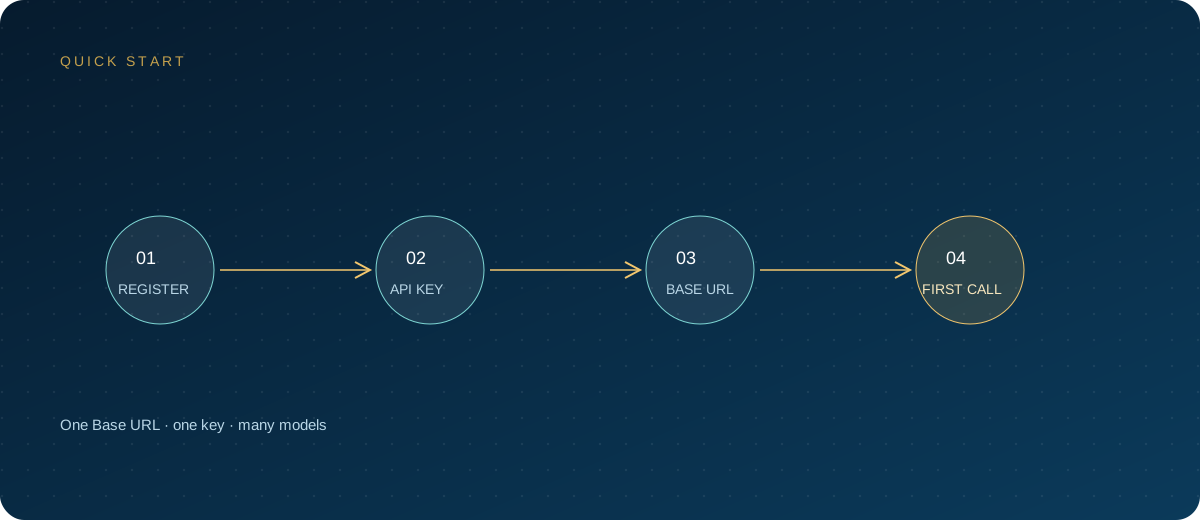
Connecting Chatbox to a custom API takes some people five minutes and leaves others stuck on 401 errors. The difference is usually not the client but how the key is created, stored, and scoped. This article covers four things around the API key: how to create it, how to configure multiple models, where it lives, and how to rotate and troubleshoot it.
Note: Chatbox is a trademark of its respective owner. This article is a technical integration guide only and has no affiliation with the Chatbox team. Models and pricing follow the site's model pricing page; interface details follow the current version.
1. First, distinguish the two kinds of credentials
Chatbox can hold two sets of credentials at the same time: the account you use to sign in to the Chatbox AI service, and the API key you enter for a custom provider. They are billed differently and must be diagnosed separately.
| Source | Who bills it | Best for | Note |
|---|---|---|---|
| Chatbox AI account | Per the client's plan | Users who do not want to manage keys | Unrelated to custom keys |
| Bring your own API key | Billed by the API provider | Teams that already have a gateway or model account | You must store and rotate it yourself |
| Local models | Depends on local hardware | Data must stay on the machine | No remote key needed |
When you see "401 even though I am signed in," first confirm which provider the current conversation is using. A successful account sign-in does not mean the custom provider's key was entered correctly.
2. Create a key: naming, ownership, and scope
After registering with the ZSQH AI Gateway, create a key in the console. It pays to get three things right the first time:
- Make it traceable: use a device-purpose-user format, such as
chatbox-mac-alice. - One key per purpose: separate desktop, mobile, and automation scripts so problems are easy to isolate.
- Record ownership: note the creation date, owner, and purpose in an internal ledger.
A key is usually shown in full only once at creation; after you close the page, it cannot be viewed again. Save it to a password manager immediately, and do not screenshot it into group chats. If the console supports quotas, model scopes, or IP restrictions, apply least privilege; if you are unsure which restrictions exist, the baseline is a dedicated key.
3. Configure multiple providers and models in Chatbox
Multiple models do not require multiple keys. Typically, one provider holds one key and several model IDs:
- Open Settings and go to "Model Provider."
- Add an OpenAI-compatible provider, ideally with an environment prefix in the name.
- Enter the Base URL, usually
https://ai.zhongshangqihang.com/v1. - Enter the API key and confirm there are no leading or trailing spaces.
- Add model IDs manually, or try fetching the model list.
- Choose a type for each model: chat, vision, reasoning, or tool calling.
- Click "Check" to verify, then return to the chat screen and switch models.
Model IDs follow the model pricing page. You can rename display labels, but the API identifier must match character for character. Name chat and vision models distinctly, for example "chat-main" and "vision-screenshots," so you do not pick the wrong one when switching.
If your team also uses clients such as Cherry Studio or LobeChat, standardize provider names and model aliases to reduce the confusion of one person using different models in different clients.
4. Where the key lives: local storage, sync, and backups
Desktop clients usually store configuration in the local application data directory, while mobile apps store it inside the app sandbox. Exact paths vary by operating system and version, and editing configuration files by hand is not recommended.
For sync, separate three things:
- Chat history sync: whether it is supported and how much it covers depends on the client version and account plan.
- Settings sync: provider configuration may sync with the account, or may stay local.
- Key sync: do not read "settings sync" as "the key is safely synced." Many clients write the key into configuration or backup files as well.
Treat exported backups, migrated configuration directories, and shared screenshots as sensitive files. When changing devices, re-enter the key rather than copying the entire data directory; once the old device is confirmed out of use, revoke the old key.
5. Least privilege: let each key do only its job
The goal is not fewer keys, but clearer boundaries. Practical measures:
- One key per member, never shared.
- Separate production and trial use; give trial keys lower quotas.
- Store keys only on devices that need them, and delete them after using a public computer.
- Turn on budgets, model allowlists, or usage alerts wherever the gateway console supports them.
- In logs and tickets, show only the last few characters of a key, never the full secret.
If the client supports multiple providers, you can also split "work" and "personal." Then a leak on one side requires revoking only one key and does not affect other devices.
6. Rotation and revocation: follow a fixed rhythm
Rotate at least every 90 days, and immediately after staff changes, device loss, or accidental configuration sharing. The order matters:
- Create a new key in the console and add a date suffix to the name.
- Replace the provider's key in Chatbox with the new value.
- Send a test message and confirm the model responds normally.
- After confirming the new key works, revoke the old one.
- Check gateway usage to confirm there are no unfamiliar calls.
- Update the internal ledger with the rotation date.
For verification, you can check the status code with one command:
export ZSQH_API_KEY="sk-new-key"

curl -sS -o /dev/null -w "%{http_code}\n" \
  "https://ai.zhongshangqihang.com/v1/models" \
  -H "Authorization: Bearer $ZSQH_API_KEY"
A 200 means authentication passed; a 401 means check first whether the key was copied completely. If the gateway does not expose a model-list endpoint, verify with an ordinary chat request instead. During rotation, do not change the Base URL and model ID at the same time, or you will not know which step caused a problem.
7. Common failures: triage by status code
| Symptom | Common cause | Action |
|---|---|---|
401 error |
Key is wrong, expired, revoked, or has spaces | Recreate it and paste it in full |
403 Forbidden |
No model permission, or a regional or policy restriction | Check console permissions and model scope |
404 Not Found |
Wrong Base URL path | Verify whether /v1 belongs there |
429 Too Many Requests |
Concurrency or quota limit | Reduce concurrency and check usage and limits |
5xx |
Upstream service error | Retry later and keep the request time |
Change only one variable at a time. First determine whether it is "this key" or "this model": test with another key or another model, and the answer usually appears quickly.
8. Team handover checklist
Put the following into the handover document to prevent most "it stopped working after the handover" cases:
- The key's owner, purpose, creation date, and next rotation date.
- The provider name, Base URL, and model ID list.
- Which devices store keys and which are shared devices.
- The revocation process for departures, transfers, and lost devices.
- Where to check usage anomalies and whom to contact.
FAQ
Does the key sync to other devices along with chat history?
Not necessarily. Chat history sync and settings sync are two different things, and whether the key travels with settings depends on the client version and sign-in method. Do not treat sync as a key vault; re-entering the key on a new device is safer.
Can one key serve both desktop and mobile?
Technically it usually can, but long-term use that way is not recommended. Split keys by device so that one lost or leaked device can be revoked independently without affecting the other.
The client's "Check" passes, but chat returns 401. Why?
First confirm that the provider and model selected in the conversation are the ones you just configured. When multiple providers coexist, the most common problem is that requests go to another provider with no key.
Do I need to re-add models after rotating a key?
Usually not. Model IDs belong to the provider configuration; changing the key only changes authentication. If the client clears the model list after the change, add them again; model IDs still follow the pricing page.
Can I put the key into proxy software or a browser extension?
Not recommended. A key should appear only in clients you trust and in the gateway console. Proxy tools, screenshot utilities, and browser extensions may read or forward configuration, so avoid giving them the key.
Next steps
Key management in Chatbox can be summarized as: one key per purpose, treat configuration and backups as sensitive files, and create the new key before revoking the old one during rotation. For a unified endpoint, usage tracking, and permission management, sign up for the ZSQH AI Gateway; models and pricing follow the model pricing page.
Related reading: